How to Scan a QR Code From a Screenshot on Android
Learn how to scan a QR code from a screenshot on Android using Google Photos, Lens, Chrome, or the Google app, plus fixes when it is not detected.
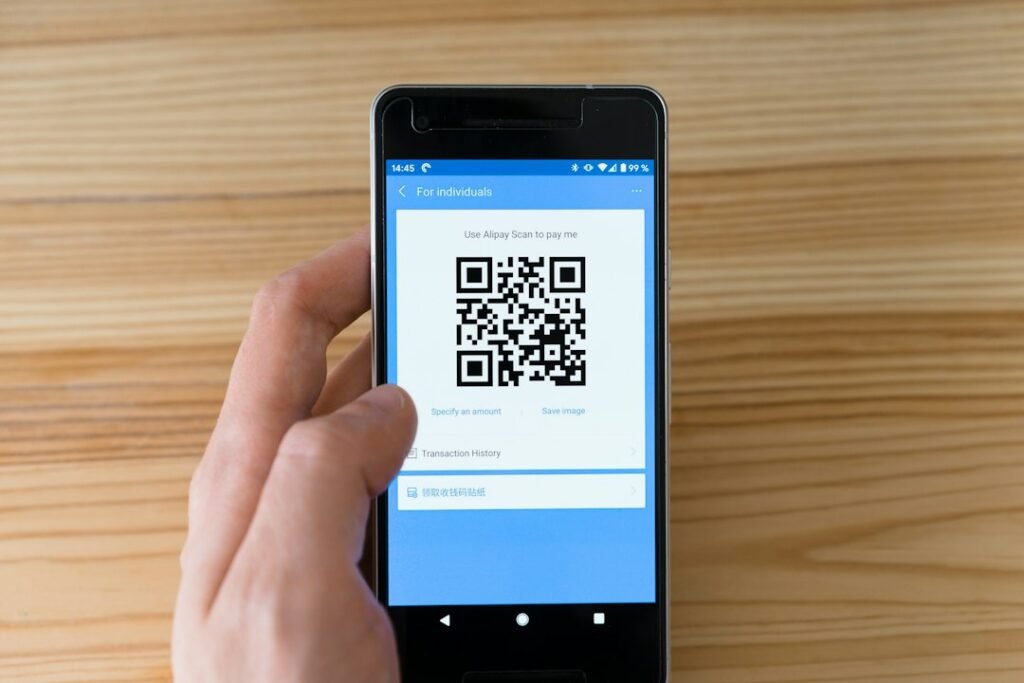
Photo by Markus Winkler on Unsplash
A QR code sometimes appears inside an email, message, PDF, social post, or screenshot on the same Android phone you are using. Pointing the camera at your own screen is impossible, but you can still read the saved code with Google Lens—no second phone or dedicated QR-scanner app is required.
This guide explains how to scan a QR code from a screenshot on Android, offers alternative methods when the Lens button is missing, and shows how to check a QR link safely before opening it.
The quickest method: use Google Photos and Lens
Google confirms that Lens can analyse existing images in Google Photos and take actions based on what it detects. The exact button position can vary slightly by phone brand and app version, but the process is usually straightforward.
- Take a screenshot that clearly includes the complete QR code.
- Open the Google Photos app.
- Select the screenshot.
- Tap Lens. If it is not immediately visible, tap More and then Google Lens.
- Wait for Lens to recognise the code.
- Tap the detected link or action only after checking that it looks legitimate.
Google’s current Google Photos help page describes selecting a saved photo and opening it with Lens. Lens can recognise several kinds of content, including barcodes, text, business cards, products, and landmarks.
Scan a QR code screenshot with the Google app
If Google Photos is unavailable or its Lens button does not detect the code, try the Google app:
- Open the Google app on your Android device.
- Tap the Lens icon in the search bar.
- Choose the QR screenshot from the images or screenshots shown on the screen.
- If necessary, adjust the selection box so it surrounds the whole QR code.
- Review the result, then tap the suggested link or action.
Google’s official image-search instructions for Android confirm that an existing image can be uploaded to Lens from the Google app. Selecting a smaller area can help when the screenshot contains several objects.
Scan the screenshot in Chrome
Chrome for Android can also open a saved image in Google Lens:
- Open a new tab in Chrome.
- Tap the Lens icon inside the search bar.
- Select the QR code screenshot from your device.
- Position the selection around the QR code if Chrome chooses the wrong part of the image.
- Check the displayed destination before opening it.
Google documents this option in its Chrome Lens guide. The same Lens feature can analyse other images, copy visible text, and search for related information.
Use your phone’s Gallery app
Some Android manufacturers add QR recognition or Google Lens directly to their Gallery app. Open the screenshot and look for an option named Lens, Scan, Recognise, or More. The available name and location depend on the phone model and software version.
If the built-in Gallery does not detect the code, share or open the image in Google Photos instead. This provides a more consistent route across Android brands.
How to take a useful QR code screenshot
QR recognition is normally fast, but the source image must contain enough detail. These steps improve the result:
- Capture the entire square, including the clear border around it.
- Avoid cropping through any corner of the code.
- Use the highest-quality version of the image available.
- Keep the code large enough to remain sharp when viewed in Photos.
- Avoid screenshots taken while the original image is still loading.
- If a PDF is zoomed out, zoom in before taking the screenshot.
- When several QR codes appear together, crop a copy around the one you need.
A blurred, distorted, partly covered, or highly compressed QR code may not scan. Ask the sender for the original image or document when a clearer screenshot is not possible.
What to do if Google Lens cannot read the code
Make sure the full code is visible
Open the screenshot and confirm that all four sides are present. QR codes use corner markers and surrounding space to help scanners identify the pattern. A tight or incomplete crop can interfere with detection.
Crop out unrelated content
Duplicate the screenshot if you want to preserve the original, then crop the copy so the QR code fills more of the frame. Open that edited image in Lens again. Do not enlarge a very small image excessively, because that cannot restore missing detail.
Update Google Photos, Google, or Chrome
Open the Play Store, find the app you are using, and install any available update. Google recommends using the latest Google app for Lens image searches. Restart the app after updating.
Try another official Lens entry point
If Lens is missing in Google Photos, try the Google app or Chrome method described above. Availability and interface placement can differ across devices, managed profiles, app versions, and regions.
Check the image in full-screen view
Lens may analyse the wrong item when Photos displays a collage or preview. Open the individual screenshot first, then start Lens and move its selection over the QR code.
How to scan a printed QR code instead
For a QR code on paper, a sign, another phone, or a computer screen, use the regular Camera app. Point the camera at the complete code and wait for a banner or link to appear. Some phones also provide a Scan QR code tile in Quick Settings.
On supported Android devices using Camera from Google, Google says you can scan in QR mode or the default photo mode. You generally do not need to take a picture; tap the banner that appears after recognition.
Check a QR link before opening it
A QR code can hide its destination until it has been scanned, so treat it like any unfamiliar link. Before continuing:
- Read the displayed domain carefully.
- Watch for misspellings, added words, or unusual domain endings.
- Do not enter passwords or payment information after opening an unexpected code.
- Be suspicious if the page pressures you to install an app or security update.
- Close the result if it claims an urgent prize, refund, account problem, or verification requirement you did not expect.
- For account, delivery, or payment requests, open the organisation’s official app or type its known website address yourself.
If Lens shows a long or shortened link that you cannot identify, do not open it merely to discover where it leads. Ask the sender what the code is for or use a reputable link-checking service without submitting personal information.
Useful related Android features
Android and Google apps can handle more than QR codes. Lens can copy text from images, translate visible words, and identify objects. For paper receipts or multi-page documents, use our guide to scan documents with Google Drive rather than saving ordinary camera photos.
If an important scan result or app alert disappears after you dismiss it, see how to use notification history on Android.
Frequently asked questions
Can Android scan a QR code already saved on the same phone?
Yes. Open the saved screenshot or image with Google Lens through Google Photos, the Google app, Chrome, or a supported manufacturer Gallery app.
Do I need a separate QR-scanner app?
Usually not. Google Lens and many Android camera or gallery apps already support QR codes. Avoid installing an unknown scanner when a built-in option works.
Can I scan a QR code from a PDF?
Yes. Display the code clearly in the PDF, take a screenshot, then open that screenshot with Lens. If the code is small, zoom in before capturing it.
Why does Lens search for similar images instead of opening the QR code?
Lens may not have recognised the pattern. Crop around the complete QR code, choose a sharper source image, reposition the Lens selection box, or try a different Lens entry point.
Can a screenshot of a QR code expire?
The image itself does not expire, but the website, sign-in session, ticket, payment request, or one-time token encoded in it may have a time limit. Request a new code when the result says it is invalid or expired.
Is it safe to scan any QR code?
Scanning reveals the encoded action, but following an untrusted result can still be risky. Review the destination and avoid entering sensitive details on an unexpected page.
Conclusion
The simplest way to scan a QR code from a screenshot on Android is to open the image in Google Photos and tap Lens. The Google app and Chrome provide reliable alternatives. Keep the full code sharp and visible, crop distracting content when needed, and always inspect the destination before opening it.
Featured image: Photo by Markus Winkler on Unsplash.





1 thought on “How to Scan a QR Code From a Screenshot on Android”