How to Use Private Space on Android to Hide Sensitive Apps
Learn how to set up Android Private Space, install and hide sensitive apps, choose a separate lock, manage notifications and fix common problems.
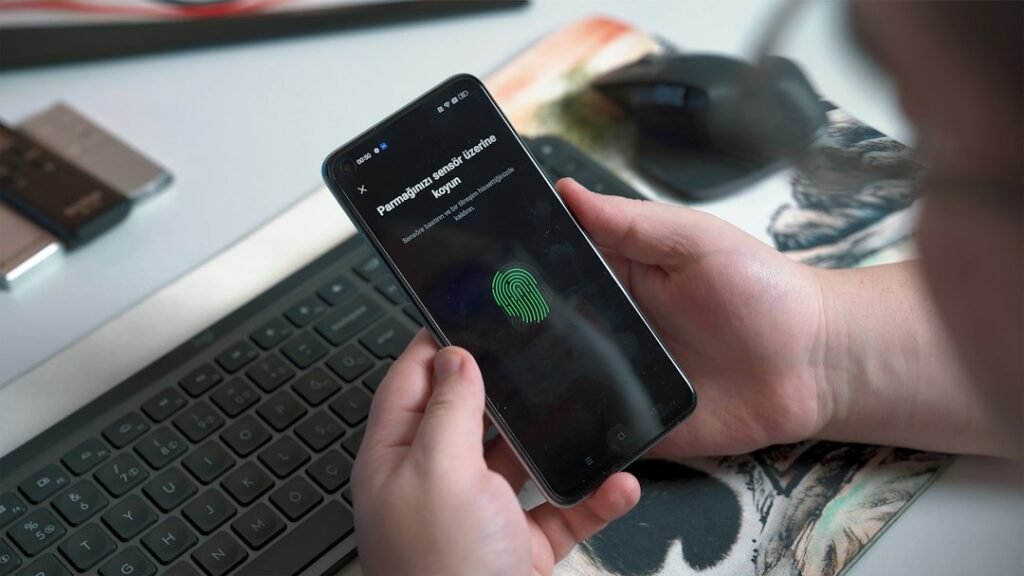
Photo by Onur Binay on Unsplash
Android’s Private Space gives compatible phones a separate, lockable area for apps you would rather keep out of ordinary view. It is useful when you occasionally lend someone your phone, want a second copy of an app with a different account, or simply prefer extra separation for personal apps.
This guide explains how to set up Android Private Space, install apps inside it, hide and lock it, and avoid the common mistakes that can make the feature less private than expected.
What is Private Space on Android?
Private Space is an isolated profile introduced with Android 15. Apps installed there are separate copies: their accounts, permissions, files and app data are not automatically shared with the same apps in your main profile. When Private Space is locked, its apps are hidden from places such as the launcher, recent-apps screen, notifications and many system surfaces.
It is more capable than simply hiding an app icon, but it is not an invisible vault. Google notes that people with advanced access to the device—such as computer access through Android Debug Bridge—may still be able to detect that a private profile exists. Device logs and some apps may also reveal its presence.
What you need before you start
Private Space is available on supported devices running Android 15 or later. You must be the phone’s main user, and the device needs a screen lock. The feature may be unavailable when:
- The manufacturer has not enabled it.
- The phone is managed by an employer or school and an administrator blocks it.
- A supervised account is signed in to the main profile.
- You are using a guest or secondary user profile.
- The device already has too many users or profiles.
Check your Android version under Settings > About phone > Android version. Menu names can differ slightly by manufacturer.
How to set up Private Space on Android
- Open Settings.
- Tap Security & privacy.
- Under Privacy, select Private Space.
- Authenticate with your current screen lock.
- Tap Set up, review the information, and continue.
- Choose whether to sign in with a Google Account.
- Select Use device screen lock or choose a different PIN, pattern or password for Private Space.
- Finish the setup.
If the option is missing even though the phone runs Android 15 or newer, check for a system update and then consult the manufacturer’s support information. Hardware and software support can vary.
Should you use a different Google Account?
A separate Google Account provides stronger separation. If you use the same account in both spaces, information associated with that account—such as synced photos, contacts, browsing activity, app recommendations or purchase history—may appear outside the private profile through account-level services.
You can also continue without adding an account, but installing apps from Google Play will normally require one. Choose based on whether convenience or separation matters more for the apps you plan to use.
How to install apps in Private Space
Unlock Private Space, open the app drawer, scroll to the Private Space section and tap Install or the plus button. The Play Store opens within the private profile so you can install an app there.
On supported launchers, you can also press and hold an app in the regular app drawer and choose Install app in Private Space. This installs a new instance; it does not move or copy the existing app’s data, login or settings.
After installation, open the private copy and sign in separately. Permissions granted to an app in the main profile do not automatically carry over, so review camera, microphone, location, contacts and photo access again.
How to open, lock and hide Private Space
Open it
Open the app drawer and scroll to the Private Space section. Tap it and authenticate. Its installed apps become available until the space locks again.
Lock it manually
Return to the Private Space section and tap the lock control. Locking stops the private profile and removes its apps from recent apps, notifications and other normal views. Messages and background activity may pause until you unlock it.
Choose when it locks automatically
Open the Private Space settings and find Lock private space automatically. Depending on the device, options may include locking whenever the phone locks, after a period of inactivity, or after the phone restarts. Locking with the device is the simplest choice if privacy is the priority.
Hide the Private Space container
While Private Space is unlocked, open its settings and enable the option to hide it when locked. Once hidden, it will no longer appear at the bottom of the app drawer while locked.
To access a hidden Private Space, search for private space in the launcher’s search field and authenticate. Remember that hiding the container makes it less obvious to casual users, but does not guarantee that sophisticated tools cannot detect the profile.
What happens to notifications and files?
Notifications from private apps are unavailable while the space is locked. That is useful for privacy, but it also means you may miss time-sensitive messages or alerts. Avoid placing an app there if you need it to run continuously.
Files and downloads created by private apps remain in the private profile. When the space is unlocked, supported Android sharing tools can let you select content across profiles. Newer Android releases may also show an Add files option for copying or moving selected files into Private Space, but availability depends on the installed Android version and manufacturer.
Private Space vs app pinning
Private Space separates selected apps and their data for ongoing privacy. App pinning temporarily keeps someone inside one visible app while you hand over the phone. If you only want a friend to view a map or photo without exploring the rest of your phone, Android app pinning may be the faster option.
For broader privacy, also review which apps can use your location. Our guide to stopping apps from tracking your location explains the relevant permission controls.
Common Private Space problems
Private Space is missing
Confirm the phone has Android 15 or later, you are signed in as the main user, and the device is not subject to supervision or an administrator policy. A manufacturer can also disable the feature.
An installed app has no previous data
This is expected. Installing an app in Private Space creates a fresh copy rather than moving the original. Sign in again and import information only if the app provides its own secure transfer or sync feature.
Notifications stop arriving
Private apps are stopped when the profile locks. Unlock the space to resume them. If an app must deliver alerts at all times, keep its primary installation in the main profile.
You forgot the separate lock
A Private Space lock is intentionally difficult to bypass. Recovery options can be limited, especially when you use a separate credential. Store the credential securely before relying on the space for important data.
How to delete Private Space safely
Before deleting it, export or back up anything you need from apps and files inside the profile. Then open Settings > Security & privacy > Private Space, authenticate, and choose the delete option.
Deleting Private Space removes its apps and local data. It does not uninstall the separate copies of those apps from your main profile. Cloud data tied to an online account may remain with the service, subject to that service’s settings.
Frequently asked questions
Does Private Space hide apps completely?
It hides private apps from normal launcher and system views when locked, especially if you also hide the container. It should not be treated as undetectable against someone with advanced device or computer access.
Can I move an existing app into Private Space?
No. Android installs a separate instance in the private profile. The original app and its data remain in the main profile unless you remove them separately.
Can Private Space use a different fingerprint or PIN?
You can choose a separate PIN, pattern or password. Available biometric choices depend on the phone and the setup options it provides.
Will private apps keep running while the space is locked?
No. Locking stops the private profile, so its apps do not continue normal background activity and their notifications are not shown.
Is Private Space the same as Samsung Secure Folder?
No. They serve a similar privacy purpose, but Private Space is an Android platform feature, while Secure Folder is Samsung’s own implementation with different setup and capabilities.
Conclusion
Android Private Space is most useful when you treat it as a separate profile rather than a simple hidden folder. Use a distinct lock, consider a separate Google Account, install only the apps that benefit from isolation, and remember that locked apps cannot deliver normal notifications. Those choices give you meaningful everyday privacy without overstating what the feature can protect.
Sources: Google Android Help: Hide sensitive apps with Private Space; Android Open Source Project: Private Space.
Featured image: Photo by Onur Binay on Unsplash.