How to Pin a Chat on WhatsApp (and Pin Messages Too)
Keep important WhatsApp conversations at the top, unpin them when finished, and understand how chat pins differ from pinned messages.
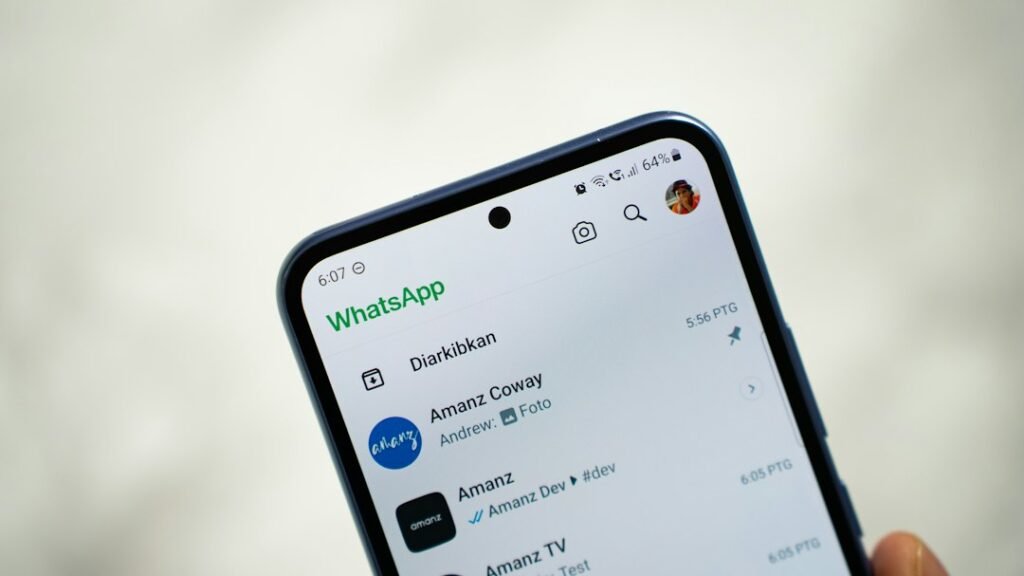
Photo by <a href="https://unsplash.com/@amanz?utm_source=wpvibe&utm_medium=referral">Amanz</a> on <a href="https://unsplash.com/?utm_source=wpvibe&utm_medium=referral">Unsplash</a>
Pinning keeps an important WhatsApp conversation at the top of the Chats list, even when newer messages arrive elsewhere. It is useful for a family group, current project or frequently contacted person, and it does not notify anyone in the conversation.
This guide explains how to pin a chat on WhatsApp for Android, iPhone, the web and desktop apps, how to unpin it, and how chat pins differ from pinned messages inside a conversation.
What happens when you pin a WhatsApp chat?
A pinned chat stays near the top of your main Chats list so you can open it quickly. WhatsApp currently allows up to three pinned chats. Pinning changes only the way the conversation is positioned for you:
- The other person or group members are not notified.
- The conversation and its messages are not altered.
- Notifications, read receipts and mute settings do not change.
- The chat is not pinned on another person’s phone.
- Pinning does not make the conversation more private.
If you need to protect the account and review privacy controls, use WhatsApp’s separate security features. Our WhatsApp Privacy Checkup guide explains where to find them.
How to pin a chat on WhatsApp for Android
- Open WhatsApp.
- Go to the Chats tab.
- Touch and hold the individual or group conversation you want to keep at the top.
- Tap the Pin icon in the toolbar.
The pinned chat moves to the pinned area and shows a small pin symbol. Repeat the steps for other priority conversations until you reach WhatsApp’s limit.
How to unpin a chat on Android
- Touch and hold the pinned conversation.
- Tap the Unpin icon in the toolbar.
The chat returns to its normal position, which is determined by the time of its most recent message.
How to pin a chat on WhatsApp for iPhone
- Open WhatsApp and select Chats.
- Find the conversation you want to pin.
- Swipe right on the chat row.
- Tap Pin.
A pin icon appears and the conversation moves to the top section of the list.
How to unpin a chat on iPhone
- Swipe right on the pinned conversation.
- Tap Unpin.
Swiping too far can perform the first displayed action immediately on some versions, so use a short, controlled swipe if you want to see the buttons first.
How to pin a chat on WhatsApp Web
- Open web.whatsapp.com and link the browser if necessary.
- Locate the conversation in the chat list.
- Hover over it and select the menu arrow or right-click the chat.
- Choose Pin chat.
To reverse it, open the same menu and select Unpin chat. Browser layouts can vary slightly as WhatsApp updates its web interface.
How to pin a chat in WhatsApp Desktop
In the Windows or Mac app, right-click the conversation or open its chat-list menu and choose Pin. Select Unpin from the same menu when it no longer needs priority.
WhatsApp’s official Windows shortcut list also includes Ctrl + Alt + Shift + P for Pin chat. Keyboard shortcuts can change by platform, so check the app’s shortcut menu if the combination does not respond.
Can you pin more than three WhatsApp chats?
WhatsApp’s Help Center currently states that Pin chat supports up to three conversations at the top of the Chats list. If you try to add another after reaching the limit, the app asks you to unpin an existing conversation first.
Choose chats that need regular attention rather than pinning every active conversation. Other organizational tools can help:
- Archive low-priority chats that you do not need in the main list.
- Mute noisy groups while keeping their history.
- Mark as unread to create a personal reminder to return later.
- Search for a person, group or message when needed.
Pin a chat versus pin a message
These features affect different parts of WhatsApp:
- Pin a chat: keeps an entire conversation at the top of your Chats list. Only you see that arrangement.
- Pin a message: displays one selected message as a banner at the top of an individual or group conversation.
WhatsApp currently permits up to four pinned messages in one chat. A pinned message can remain for 24 hours, 7 days or 30 days, and people in the chat can see the pin event where supported.
How to pin a message inside a WhatsApp chat
On Android
- Open the conversation.
- Touch and hold the message.
- Tap the More options menu.
- Select Pin.
- Choose 24 hours, 7 days or 30 days, then confirm.
On iPhone
- Open the chat and touch and hold the message.
- Choose More if Pin is not shown immediately.
- Tap Pin.
- Select the duration and confirm.
On WhatsApp Web or Desktop
- Hover over the message.
- Open its menu.
- Choose Pin.
- Select the duration and confirm.
Tap or click the pinned-message banner to jump to the original message. If several messages are pinned, use the banner to cycle through them.
Who can pin messages in a WhatsApp group?
Group admins can control whether members are allowed to pin messages. In the group chat, open the group name, choose Group permissions, and review the setting that allows members to edit group settings.
WhatsApp posts a system notice when a group message is pinned, including who pinned it. A new member may not see an older pinned message if it was sent before the person joined, and someone cannot view a pinned item that is missing from their own chat history.
How to unpin a message
- Touch and hold the pinned message on mobile, or open its menu on web or desktop.
- Select Unpin.
- Confirm if prompted.
A message also unpins automatically when its chosen duration ends. Removing the pin does not delete the original message.
Why the Pin option may be missing
WhatsApp needs an update
Open the App Store, Google Play or the desktop app’s update screen and install the latest supported version. Restart WhatsApp afterward.
You are using a different gesture
On Android, touch and hold a chat. On iPhone, swipe right on the conversation. Opening the chat itself will not reveal the chat-list pin control.
You reached the chat-pin limit
Unpin one of the three existing pinned chats before trying again.
The group does not allow members to pin messages
This applies to message pins inside groups, not to privately arranging chats in your own list. Ask a group admin to review permissions if a message cannot be pinned.
The linked device has not refreshed
Check the phone’s connection, refresh WhatsApp Web or restart the desktop app. If the problem continues, unlink and relink the affected device only after confirming that your main phone account is working.
Does pinning sync across linked devices?
WhatsApp may synchronize chat organization across supported linked devices, but a change can take time to appear and behavior can vary between app versions. If a pin is missing on one device, update and restart that client before recreating it.
Do not confuse synchronization with visibility: people you chat with still cannot see which conversations you pinned in your own Chats list.
Useful ways to organize WhatsApp chats
- Pin the few conversations you actively need.
- Archive completed or low-priority conversations.
- Mute groups when notifications are distracting.
- Star a specific message that you may need later.
- Use search for names, phrases, documents or links.
- Review automatic media downloads if photos are filling storage.
If images are cluttering your phone, follow our guide to stop WhatsApp from automatically saving photos without deleting existing conversations.
Frequently asked questions
Will someone know if I pin their WhatsApp chat?
No. Pinning an entire conversation changes only your own chat list and does not send a notification.
Do pinned chats stay at the top when new messages arrive?
Yes. They remain in the pinned section while unpinned conversations continue to reorder by recent activity.
Does pinning a chat stop it from being archived?
No. Pinning and archiving are separate actions. If you archive a conversation, it moves to the Archived area rather than remaining in the main pinned section.
Does pinning affect mute settings?
No. A chat can be pinned and muted at the same time.
How many messages can I pin inside one chat?
WhatsApp currently supports up to four pinned messages per chat, each with a duration of 24 hours, 7 days or 30 days.
Can I permanently pin a message?
WhatsApp’s current message-pin choices are time-limited. You can pin it again after the selected duration expires, or star it if you want an easier way to find it later without a banner.
Conclusion
To pin a WhatsApp chat, touch and hold it on Android or swipe right on it on iPhone, then select Pin. Web and desktop users can open the conversation’s menu and choose Pin chat. Use chat pins for quick access to entire conversations and message pins for temporary reminders inside a chat.
Sources
- WhatsApp Help Center: How to pin or unpin a chat
- WhatsApp Help Center: How to pin a message
- WhatsApp Help Center: Keyboard shortcuts
Featured image: Photo by Amanz on Unsplash.