How to Block Emails in Gmail on Any Device
Block unwanted emails in Gmail on a computer, Android, iPhone or iPad, then learn when to unsubscribe, report spam, report phishing or use a filter.
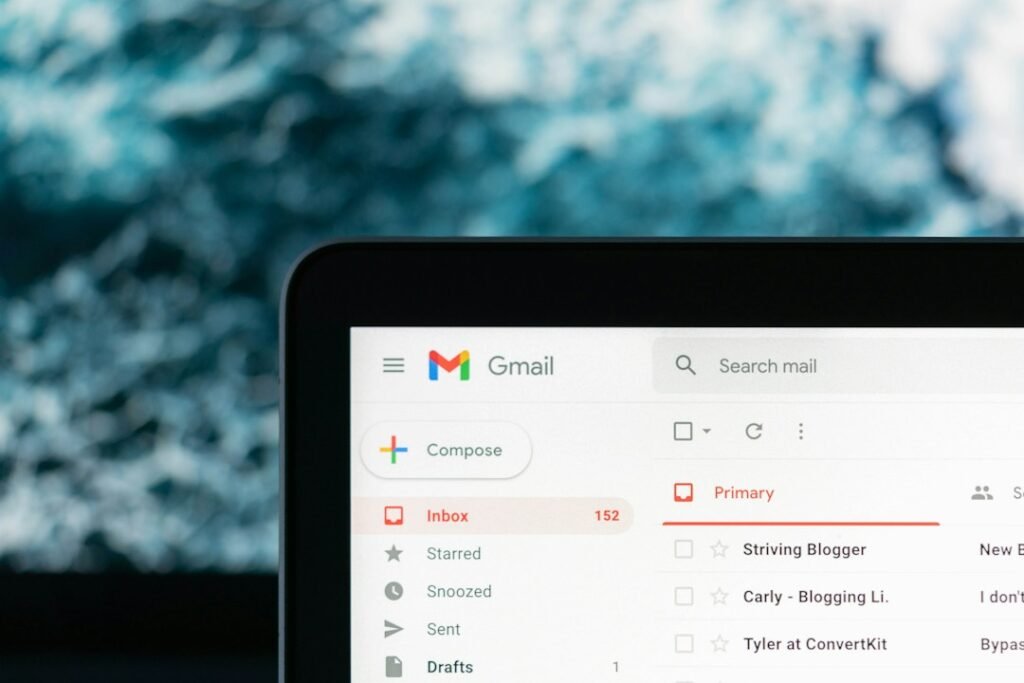
Photo by Justin Morgan on Unsplash
Blocking a sender in Gmail is a quick way to keep repeated unwanted messages out of your inbox. Future emails from that address are sent to Spam, while the sender is not notified that you blocked them.
This guide explains how to block emails in Gmail on a computer, Android, iPhone and iPad; how to review or remove blocked addresses; and when unsubscribing, reporting spam, reporting phishing or creating a filter is the better choice.
What happens when you block someone in Gmail?
When you block an email address, Gmail sends future messages from that specific sender to Spam. Blocking does not delete older messages already in your inbox, stop the sender from emailing you, or remove your address from a mailing list.
The block applies to the email address you selected. If the same person or organization writes from another address, that address is not automatically blocked. Gmail may still apply its normal spam protections independently.
You can unblock the sender later. Google says future messages should then return to your inbox, although Gmail’s spam filters and any rules you created can still affect delivery.
How to block emails in Gmail on a computer
- Open Gmail and sign in.
- Open a message from the sender you want to block.
- At the top-right of the message, next to Reply, click the three-dot More menu.
- Select Block “[sender name]”.
- Confirm the action if Gmail asks.
New messages from that email address will normally go to Spam. The open message may remain where it is unless you move, archive or delete it.
How to block emails in the Gmail Android app
- Open the Gmail app.
- Open an email from the sender.
- Tap the three-dot menu beside the sender information inside the message. Be careful not to use the separate app-level menu at the top of the screen.
- Tap Block “[sender name]”.
If the message is clearly junk rather than simply unwanted, choose Report spam instead. Reporting helps Gmail evaluate similar messages, while blocking mainly directs future mail from the selected address to Spam.
How to block emails in Gmail on iPhone or iPad
- Open the Gmail app on your iPhone or iPad.
- Open the sender’s message.
- Tap the three-dot menu next to the sender details.
- Choose Block “[sender name]”.
If you use Apple Mail or another email app with your Gmail account, the menus will be different. Open the official Gmail app or use Gmail in a web browser when following these steps.
How to unblock a sender in Gmail
If you still have a message from the sender, open it, use the same three-dot menu and choose Unblock “[sender name]”.
On a computer, you can also review the complete blocked-address list:
- Open Gmail.
- Click the gear icon, then See all settings.
- Open Filters and Blocked Addresses.
- Find the address you want to restore.
- Select it and click Unblock selected addresses.
Unblocking affects future messages. It does not automatically move earlier emails out of Spam. Open Spam, find a valid message and use Report not spam if necessary.
Block, unsubscribe, report spam or report phishing?
These Gmail controls solve different problems. Choosing the correct one produces better results than blocking everything.
Block a sender
Use Block when you no longer want messages from a particular address and do not need to remain subscribed. Future messages go to Spam, but the sender can continue sending and you remain on any external mailing list.
Unsubscribe from newsletters
Use Unsubscribe for legitimate newsletters and promotional messages that you previously agreed to receive. When Gmail recognizes a mailing list, an Unsubscribe option may appear beside the sender’s name. Some senders direct you to their website to complete the request.
Google notes that it can take a few days for emails to stop. Unsubscribing is generally cleaner than blocking a legitimate mailing list because it asks the sender to remove you rather than continually routing its messages to Spam.
Report spam
Use Report spam for unsolicited bulk email, persistent junk or suspicious advertising. Select the message and click or tap the spam-report icon. Google receives a copy of reported messages and may analyze them to improve spam detection.
Report phishing
Use Report phishing when a message appears designed to steal a password, payment information or other sensitive data, or impersonates a trusted person or organization. On a computer, open the message, click the three-dot menu beside Reply and choose Report phishing.
Do not click links, download attachments, reply or enter information through a suspicious message. Instead, visit the organization’s website directly using a trusted bookmark or manually entered address.
How to block multiple senders
Gmail’s normal Block command is applied to one sender address at a time. To block several addresses, open a message from each sender and repeat the process.
For predictable groups of messages, a Gmail filter is often more efficient. A filter can match several addresses, a domain, subject text or other search criteria and then delete, archive, label or otherwise process new mail automatically.
Our guide to creating Gmail filters and automatic labels explains the filter setup process. Test the search carefully before choosing Delete, especially when matching an entire domain.
How to stop emails from an entire domain
Gmail does not provide a one-click block for every address at a domain. On a computer, create a filter instead:
- Click the search-options icon in Gmail’s search bar.
- In the From field, enter the domain using a query such as @example.com.
- Click Search first and inspect the results.
- Open search options again and choose Create filter.
- Select an action such as Delete it.
- Click Create filter.
A broad domain rule can catch legitimate messages from other departments or accounts, so review the search results before activating it.
How to find emails from a blocked sender
Blocking does not erase messages. Future mail normally appears in Spam, where Gmail may automatically delete it after the retention period shown in your account.
To look for messages:
- Open Gmail and expand More in the left menu.
- Open Spam.
- Use search if needed, including the sender’s full email address.
If a message is legitimate, open it and select Report not spam. Then unblock the sender and check whether a filter is also redirecting their mail.
Why blocked emails may still appear
The sender used another address
Blocking is address-specific. Marketing systems and unwanted senders sometimes use multiple addresses. Block or report the new address, or create a carefully scoped filter.
The visible name is the same, but the address is different
Sender names are not unique. Expand the sender details to check the actual address before deciding what to block or report.
The message is part of an existing conversation
Conversation view can group related messages. Check the sender on the individual new message rather than assuming every message in the thread came from the blocked address.
A filter is moving messages back
Review Settings > See all settings > Filters and Blocked Addresses. A rule that marks messages important, prevents Spam placement or forwards mail can affect how messages are handled.
You blocked the wrong account
Open the blocked-address list and confirm the exact address. Similar spellings, forwarding addresses and mailing-list identifiers can make the source less obvious.
Can a blocked sender tell?
Gmail does not send a notification saying that you blocked the address. From the sender’s perspective, the message may appear to send normally. Blocking is an inbox-management action, not a delivery rejection or account-level communication restriction.
Because the sender is not stopped from sending, use additional safety and account-reporting options if unwanted messages are part of a broader security concern. Do not engage with threatening or suspicious messages.
Does blocking delete old emails?
No. Existing messages remain in their current folders until you archive, delete or move them. To remove multiple older messages, search for the sender’s address, review the results, select the relevant messages and delete them.
Check carefully before selecting all conversations, especially when the sender is a service you still use. You may need receipts, account notices or other records from the same address.
Keep useful Gmail messages organized instead
Not every high-volume sender should be blocked. For updates you may need later, a filter can archive and label messages without cluttering the primary inbox. For messages that require a response at a specific time, scheduling or other workflow tools may be more appropriate.
If you regularly prepare recurring replies, see how to create reusable email templates in Gmail.
Frequently asked questions
Where do blocked emails go in Gmail?
Google says future emails from a blocked address go to Spam. Existing messages are not automatically moved or deleted.
Does blocking someone unsubscribe me?
No. Blocking and unsubscribing are separate. Blocking routes future messages to Spam, while unsubscribing asks a legitimate mailing list to stop sending.
Can I block someone without opening their email?
Gmail’s standard sender-blocking command is available inside an opened message. If opening the message feels unsafe, select it from the inbox and report it as spam, or report phishing where appropriate, without clicking its links or attachments.
Can I block all emails with the same subject?
Use a filter rather than the single-sender Block command. Search for the subject text, confirm the results and create a rule for future matching messages.
Will blocking work across my devices?
Yes. Blocking is associated with the Gmail account, so the result should apply when you access that account on other devices. Make sure you are using the same Google Account.
How do I see everyone I blocked?
On a computer, open Gmail settings and select Filters and Blocked Addresses. This section lists blocked senders and lets you unblock selected addresses.
Conclusion
Use Gmail’s Block option when one specific address repeatedly sends mail you no longer want. For legitimate newsletters, unsubscribe; for junk, report spam; and for messages that attempt to steal information, report phishing without interacting with their content. Choosing the right control keeps the inbox cleaner and gives Gmail the most useful signal.
Sources: Gmail Help: Block an email address; Gmail Help: Unsubscribe from an email; Gmail Help: Report spam; Gmail Help: Avoid and report phishing emails.
Featured image: Photo by Justin Morgan on Unsplash.