How to Use Back Tap on iPhone for Shortcuts and Actions
Set up Back Tap on iPhone to take screenshots, open controls, run Shortcuts and accessibility actions, plus fix missed or accidental taps.
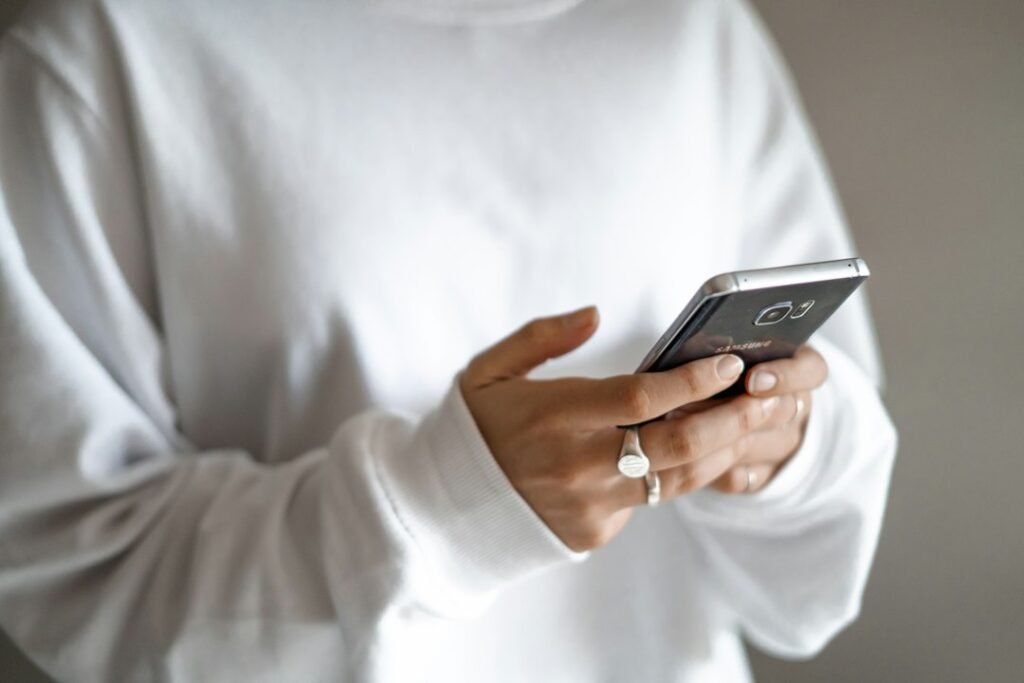
Photo by Kelli McClintock on Unsplash
Back Tap turns the rear of a compatible iPhone into an extra control. A quick double-tap or triple-tap can take a screenshot, open Control Center, activate an accessibility feature, scroll the screen or run a Shortcut—without adding another button to the Home Screen.
This guide explains how to use Back Tap on iPhone, choose useful actions, connect it to the Shortcuts app, reduce accidental triggers and fix it when taps are not recognized.
What is Back Tap on iPhone?
Back Tap is an iOS accessibility feature that detects a double-tap or triple-tap on the back of the phone. You assign one action to Double Tap and another to Triple Tap. The iPhone then performs the selected action when it recognizes that gesture.
Apple introduced Back Tap in iOS 14. Apple’s support guidance says it works on iPhone 8 or later with a current version of iOS. It does not require a visible on-screen control or a special Apple case.
How to turn on Back Tap
- Open the Settings app.
- Tap Accessibility.
- Under Physical and Motor, tap Touch.
- Scroll down and select Back Tap.
- Tap Double Tap or Triple Tap.
- Choose the action you want the gesture to perform.
- Tap the back arrow to save the selection.
Now tap the back of the iPhone two or three times according to the gesture you configured. The exact list of available actions can vary with the iOS version and the features enabled on your phone.
What can you do with Back Tap?
The Back Tap menu can include several types of actions:
- System actions: open Control Center, Notification Center, Spotlight or the App Switcher; return Home; lock the screen; mute audio; or take a screenshot.
- Accessibility actions: start features such as AssistiveTouch, Magnifier, Reachability, VoiceOver or an Accessibility Shortcut.
- Scroll gestures: scroll up or down in compatible views.
- Shortcuts: run an automation you created in Apple’s Shortcuts app.
Choose actions that are genuinely useful but not disruptive when triggered accidentally. A screenshot is convenient for Double Tap, while a more consequential shortcut may be safer on Triple Tap.
Useful Back Tap setups to try
Take a screenshot
Go to Settings > Accessibility > Touch > Back Tap > Double Tap, then choose Screenshot. This can be easier than pressing the side and volume buttons together, especially when using the phone one-handed.
Open Control Center
Assign Control Center if reaching the top corner of the screen is uncomfortable. The gesture gives you quick access to brightness, volume, wireless controls and other configured buttons.
Use Reachability
Reachability lowers the top half of the screen so controls are easier to reach. It can be particularly useful on larger iPhone models. Select Reachability as the Back Tap action, then use the gesture whenever an interface element is too high on the display.
Activate an accessibility feature
Back Tap can provide a quick route to accessibility tools. If you use multiple features through Accessibility Shortcut, configure that list under Settings > Accessibility > Accessibility Shortcut, then select Accessibility Shortcut as your Back Tap action.
Run a custom Shortcut
Back Tap becomes more flexible when connected to the Shortcuts app. You can use a shortcut to open a frequently used app, start a timer, change device settings supported by Shortcuts, play a playlist or perform a multi-step routine.
How to run an Apple Shortcut with Back Tap
- Open the Shortcuts app and create or test the shortcut you want to use.
- Go to Settings > Accessibility > Touch > Back Tap.
- Choose Double Tap or Triple Tap.
- Scroll to the Shortcuts section.
- Select the shortcut.
- Double-tap or triple-tap the back of the iPhone to test it.
Run the shortcut manually in the Shortcuts app before connecting it to Back Tap. If it needs permission to access an app, location, photos or another data source, complete those prompts first. This helps separate a shortcut problem from a gesture-recognition problem.
Avoid assigning a shortcut that sends a message, shares a file, deletes information or makes another hard-to-reverse change without confirmation. Back Tap can occasionally trigger while you handle or set down the phone.
Where should you tap?
Use two or three distinct taps near the middle or upper-middle area of the phone’s back. You do not need to strike the Apple logo specifically, and hitting the phone hard will not improve accuracy.
Try a steady rhythm rather than tapping too slowly. Hold the phone normally and test the gesture several times; people often get more reliable results after adjusting the tapping position slightly.
Does Back Tap work with a case?
Back Tap often works through ordinary cases because the iPhone detects motion rather than using a touch-sensitive panel on the back. However, a very thick, rigid or specialized case may reduce reliability. Accessories attached to the rear of the case can also change how the motion is transmitted.
If Back Tap works without the case but not with it, the case is probably affecting detection. Refit the case, remove bulky rear accessories or use a different case before changing unrelated settings.
How to prevent accidental Back Tap actions
- Assign the action to Triple Tap instead of Double Tap.
- Choose a low-risk action such as Spotlight, Control Center or Reachability.
- Avoid placing message-sending or destructive shortcuts directly on Back Tap.
- Use confirmation steps inside sensitive shortcuts.
- Remove the assignment temporarily when exercising or carrying the phone in a way that repeatedly triggers it.
If accidental screenshots are filling your Photos library, change Screenshot to Triple Tap or select a different action. For other useful photo controls, see our guide to changing photo permissions for iPhone apps.
Back Tap not working? Try these fixes
Confirm your iPhone is compatible
Apple specifies iPhone 8 or later. Back Tap is not available on every older device, even if it can run an older version of iOS.
Update iOS
Go to Settings > General > Software Update and install an available update after making a backup. Apple recommends using the latest version of iOS for Back Tap.
Check that an action is selected
Return to Settings > Accessibility > Touch > Back Tap. If Double Tap or Triple Tap shows None, the gesture has no assigned result.
Try a built-in action
Assign a simple built-in action such as Screenshot or Control Center. If that works but a custom shortcut does not, open the Shortcuts app and troubleshoot the shortcut itself, including any permission prompts.
Change the tap location and rhythm
Try tapping nearer the middle of the back with a slightly quicker, even rhythm. Do not tap forcefully. Test while holding the phone rather than when it is resting on a soft surface.
Remove the case temporarily
A bulky case or attached accessory may interfere. Remove it, test Back Tap, then reinstall accessories one at a time to identify the cause.
Restart the iPhone
A normal restart can resolve a temporary settings or sensor issue. After restarting, confirm the Back Tap assignment is still present.
How to change or turn off Back Tap
- Open Settings > Accessibility > Touch > Back Tap.
- Select Double Tap or Triple Tap.
- Choose a different action, or tap None to disable that gesture.
Double Tap and Triple Tap are controlled separately. If you want Back Tap completely off, set both to None.
Back Tap vs the Action button
On supported iPhone models, the Action button provides a physical way to launch an assigned feature. Back Tap is available across more compatible iPhone models and gives you two possible gestures, but gesture recognition can be less predictable than a button press.
You can use both: reserve the Action button for a frequent, important task and use Back Tap for convenient secondary actions. You can also improve everyday privacy by learning how to lock or hide iPhone apps with Face ID.
Frequently asked questions
Do I have to tap the Apple logo?
No. Back Tap is not a touch sensor inside the logo. Tapping around the middle or upper-middle of the back usually works; test a few positions to find the most reliable one.
Can Back Tap open an app?
Yes, indirectly. Create or use a Shortcut that opens the app, then assign that shortcut to Double Tap or Triple Tap.
Can I assign more than two Back Tap actions?
You can assign one action to Double Tap and one to Triple Tap. A more complex Shortcut can present a menu or perform multiple steps, but Back Tap itself provides two gestures.
Does Back Tap work when the screen is locked?
Behavior depends on the assigned action and security restrictions. Some actions or shortcuts may require the iPhone to be unlocked before they can complete.
Why does Back Tap trigger accidentally?
Movements or impacts similar to your configured tapping rhythm can occasionally be detected. Use Triple Tap, select a less disruptive action, or turn off the gesture when it is not useful.
Conclusion
Back Tap is most useful when it removes friction from a task you perform often. Start with a simple action such as Screenshot, Control Center or Reachability, then experiment with a tested Shortcut. If detection is unreliable, adjust the tapping position, check the case and verify the assigned action before assuming the feature is broken.
Sources: Apple Support: Use Back Tap on your iPhone; Apple iPhone User Guide: Back Tap actions and shortcuts; Apple Shortcuts User Guide: Run shortcuts with Back Tap.
Featured image: Photo by Kelli McClintock on Unsplash.