How to Stop Apps Tracking Your Location on Android and iPhone
Learn how to stop apps tracking your location on Android and iPhone, limit precise access, review background permissions, and improve phone privacy.
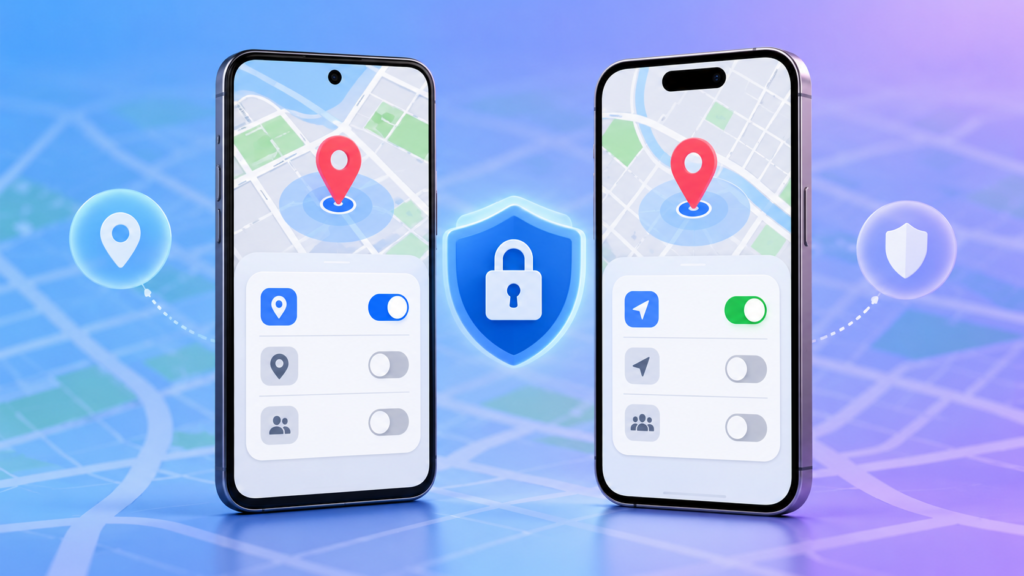
Your phone’s location permission can be useful for maps, weather, ride-hailing, delivery, and emergency features. But many apps do not need continuous access to your exact position. Reviewing these permissions takes only a few minutes and can reduce unnecessary tracking without breaking the apps you rely on.
This guide explains how to stop apps tracking your location on Android and iPhone, which permission setting to choose, and what to check if an app stops working afterward.
Quick answer: the safest location setting for most apps
For most apps, choose Allow only while using the app on Android or While Using the App on iPhone. Use Never or Don’t allow for apps that have no clear location-based feature. Keep background access only for services that genuinely need it, such as navigation during an active journey, trusted safety tools, or location-sharing features you intentionally use.
You can also disable Precise Location for apps that only need a general area, such as weather or local news apps.
How to stop location tracking on Android
Menu names can vary slightly between Google Pixel, Samsung Galaxy, Motorola, OnePlus, and other Android phones. The following paths work on many recent Android versions.
Method 1: Review every app with location access
- Open Settings.
- Tap Security & privacy or Privacy.
- Open Permission manager.
- Tap Location.
- Review apps under categories such as “Allowed all the time,” “Allowed only while in use,” and “Not allowed.”
- Select an app and change its permission.
Depending on your phone and Android version, the available choices may include:
- Allow all the time: The app can access location in the background.
- Allow only while using the app: Location works when the app is open and active.
- Ask every time: The app asks again whenever it needs access.
- Don’t allow: The app cannot use your device location.
Google’s official Android guidance confirms that these controls can be managed from the Permission Manager or from an individual app’s settings. See the Android app-permissions guide.
Method 2: Change permission for one Android app
- Touch and hold the app icon.
- Tap App info.
- Select Permissions, then Location.
- Choose the access level you want.
- If shown, switch off Use precise location to share only an approximate area.
This is the fastest option when you notice a location icon after opening a particular app.
Use Android’s Privacy Dashboard
On supported Android devices, the Privacy Dashboard shows which apps recently accessed sensitive permissions. Go to Settings > Security & privacy > Privacy > Privacy dashboard, then select Location. Android 13 and newer may display activity from the previous seven days, while Android 12 may show the previous 24 hours, according to Google’s Privacy Dashboard documentation.
Look for unexpected background access. A map app using location during navigation makes sense; a basic calculator, wallpaper app, or flashlight usually has no obvious reason to know where you are.
How to stop location tracking on iPhone
- Open Settings.
- Tap Privacy & Security.
- Select Location Services.
- Tap an app in the list.
- Choose Never, Ask Next Time Or When I Share, While Using the App, or another available option.
- Turn off Precise Location if the app only needs your approximate area.
Some iPhone apps may offer Always access. Reserve it for a small number of trusted apps whose core feature must continue when the app is not on screen. If you are unsure, start with “While Using the App” and check whether the app still works as expected.
Check the iPhone location indicator
An arrow icon can appear when an app or system service uses Location Services. In the Location Services list, iPhone also uses arrow indicators to help show recent or potential location access. This makes it easier to identify apps worth reviewing.
Should you turn off location completely?
You can disable the main Location Services switch, but this is usually unnecessary. Doing so can affect navigation, local weather, geotagging, delivery estimates, Find My features, and other useful services. A better balance is to keep device location enabled while limiting each app individually.
Before changing settings for safety, emergency, anti-theft, or family-location apps, confirm how the feature operates. Removing background access may prevent alerts or live location updates.
Precise vs approximate location: which should you use?
Precise location can identify your position closely and is helpful for turn-by-turn navigation, ride pickup, delivery, and some emergency functions. Approximate location gives an app a broader area and is usually enough for local weather, regional content, nearby recommendations, or time-zone features.
A practical rule is simple: if the app needs to guide someone to your exact position, precise access may be justified while you use it. If it only needs to know your city or general area, approximate access is the more private choice.
Apps you should review first
- Social media and short-video apps
- Shopping and coupon apps
- Games
- Photo editors and wallpaper apps
- News and entertainment apps
- Browsers
- Apps you rarely use
- Any app allowed to access location all the time
Do not remove permission solely because an app appears in the list. Consider whether location is necessary for the feature you use, then choose the least access that still lets that feature work.
What happens after you block location access?
The app may continue working normally, show less relevant local content, ask for permission again, or disable a location-dependent feature. If something important stops working, return to the same settings page and select “While using the app” rather than granting permanent background access.
Changing location permission does not delete your account or erase location information the company may already hold. If you want previously stored data removed, review the app’s privacy controls, location history, and account-deletion options separately.
Extra privacy checks worth doing
Review camera and microphone permissions
Location is only one sensitive permission. Check which apps can use your camera and microphone as well. Our guide on checking camera and microphone permissions explains the same privacy principle on a computer: grant access only where it is genuinely needed.
Remove permissions from unused Android apps
Android can pause activity and remove permissions from apps you have not used for a while. Open the app’s information page and look for an option such as Pause app activity if unused.
Review location sharing separately
App permission and live location sharing are not always the same thing. Google Maps, Find My, messaging apps, and family-safety apps may have their own sharing controls. Check active sharing sessions and stop any you no longer need.
Delete apps you no longer trust
If an app requests permissions that do not match its purpose, has unclear ownership, or repeatedly pressures you to enable background location, consider uninstalling it and choosing a more privacy-conscious alternative.
Frequently asked questions
Can apps track me if Location Services is off?
Turning off device location blocks normal GPS-based access, but apps and websites may still estimate a broad area using an IP address, network information, account activity, or information you provide. Location permissions reduce access to device location; they do not make a phone completely anonymous.
Does turning off precise location stop an app from working?
Many apps continue working with an approximate area. Navigation, ride pickup, delivery, and other exact-position features may need precise access. You can enable it only for the apps that require it.
Which apps need “Allow all the time”?
Very few apps need permanent background access. Possible examples include trusted navigation, safety, automation, fitness-route, or location-sharing apps—only when you actively use those background features.
Will these steps improve battery life?
Reducing unnecessary background location activity may help battery life, although the effect depends on the app, phone, and how often location was being requested.
Final recommendation
Review location permissions every few months and after installing several new apps. For most apps, “While using” is the best starting point. Disable precise location where a general area is enough, remove background access that has no clear purpose, and revisit any app that behaves unexpectedly after the change.