How to Check Camera and Microphone Permissions in Windows 11
Review which apps can use your camera and microphone in Windows 11, understand desktop-app access and change privacy permissions safely.
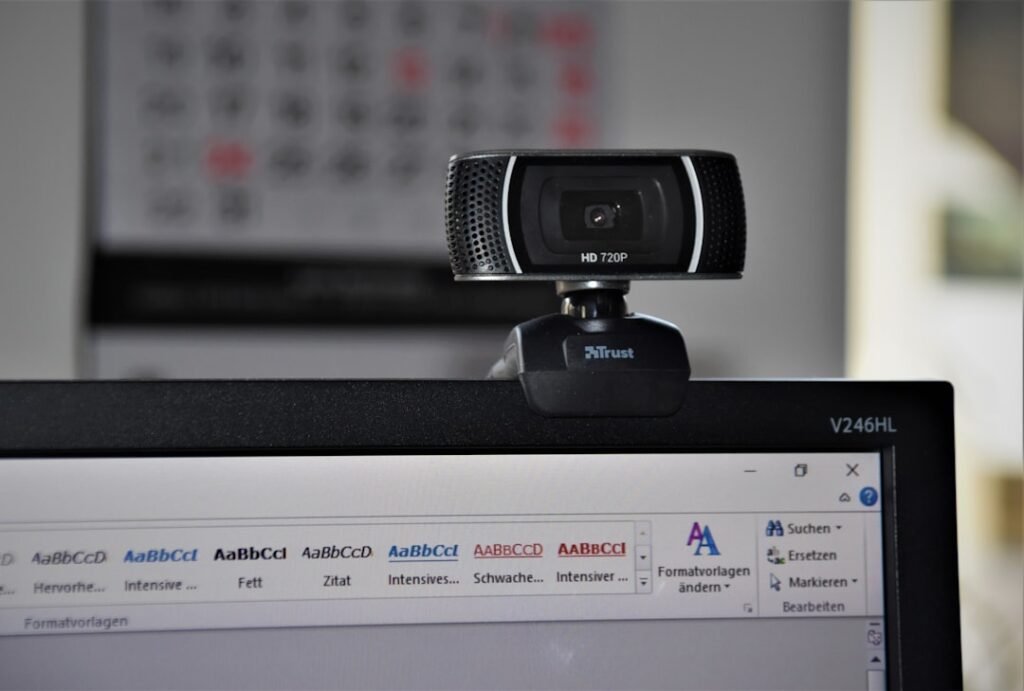
Photo by Waldemar Brandt on Unsplash
Windows 11 lets you control access to your camera and microphone from Privacy & security settings. Reviewing these permissions can fix video-call problems and reduce unnecessary access, but desktop applications are handled differently from Microsoft Store apps.
Quick answer
- Open Settings.
- Select Privacy & security.
- Open Camera or Microphone.
- Review device access, app access and individual app switches.
- Turn off access you do not need without disabling applications you actively use for calls or recording.
Review camera permissions
Go to Settings > Privacy & security > Camera. Windows separates several levels of control:
- Camera access controls whether users on the device can manage access.
- Let apps access your camera controls Microsoft Store apps.
- Individual switches allow or block listed Store apps.
- Let desktop apps access your camera applies to traditional desktop programs as a group.
Microsoft notes that desktop camera access cannot always be controlled app by app from this screen.
Review microphone permissions
Open Settings > Privacy & security > Microphone. Review the main access switch, Store-app access, individual apps and the desktop-app setting.
Windows displays a microphone icon in the taskbar notification area when an application is using the microphone. A camera indicator light may turn on when the camera is active; devices without a light can show a notification.
Why is an application missing?
If an app is not in the individual list, it may be a traditional desktop application. Browsers and many meeting programs fall into this group. Windows may show desktop apps that have interacted with the hardware, but the master desktop-app switch affects the whole group.
Also remember that a browser has a second permission layer. Windows may allow the browser to use the camera while the browser blocks a specific website.
Control website permissions in Microsoft Edge
When a website requests a camera or microphone, Edge asks whether to allow or block it. To review a previous choice, open Edge settings, find Site permissions, select the website and change its Camera or Microphone permission.
Other browsers provide similar site-level controls. Review both Windows and browser permissions if a web meeting cannot detect your equipment.
Why does Windows Hello still use the camera?
Microsoft identifies Windows Hello as an exception. If facial sign-in is enabled, Windows can use the camera for authentication even when ordinary application camera access is disabled. Turning off app access does not automatically disable Windows Hello.
Fix a camera or microphone that stopped working
- Confirm the correct camera or microphone is connected.
- Check physical privacy shutters and mute switches.
- Review Windows privacy permissions.
- Review the application’s selected input device.
- For browser tools, check the website permission.
- Close other apps that may be using the device.
- Install Windows and manufacturer updates, then restart.
Privacy recommendations
- Disable access for Store apps you do not recognize or use.
- Keep desktop access enabled only when required by trusted software.
- Block website permissions after one-time calls.
- Use the physical camera shutter when available.
- Lock your PC when stepping away.
For another quick privacy cleanup, learn how to clear Windows 11 clipboard history and turn off syncing.
Frequently asked questions
Why can’t I change Camera access?
An administrator may control the setting on a work, school or managed device.
Can I block one desktop app?
Windows’ privacy page may not offer individual controls for traditional desktop apps. Use the app’s settings, browser permissions or uninstall untrusted software.
Does the camera light always identify the exact app?
No. It indicates activity. Review recent activity and close programs systematically to identify the source.
Will blocking microphone access stop video calls?
It can stop others from hearing you. Re-enable access for the trusted meeting app or browser when needed.
Source: Microsoft Support — Windows camera, microphone, and privacy.