How to Turn Off Autocorrect on Android (Gboard & Samsung)
Stop unwanted word replacements on Android while keeping helpful suggestions. Follow the correct steps for Gboard and Samsung Keyboard.
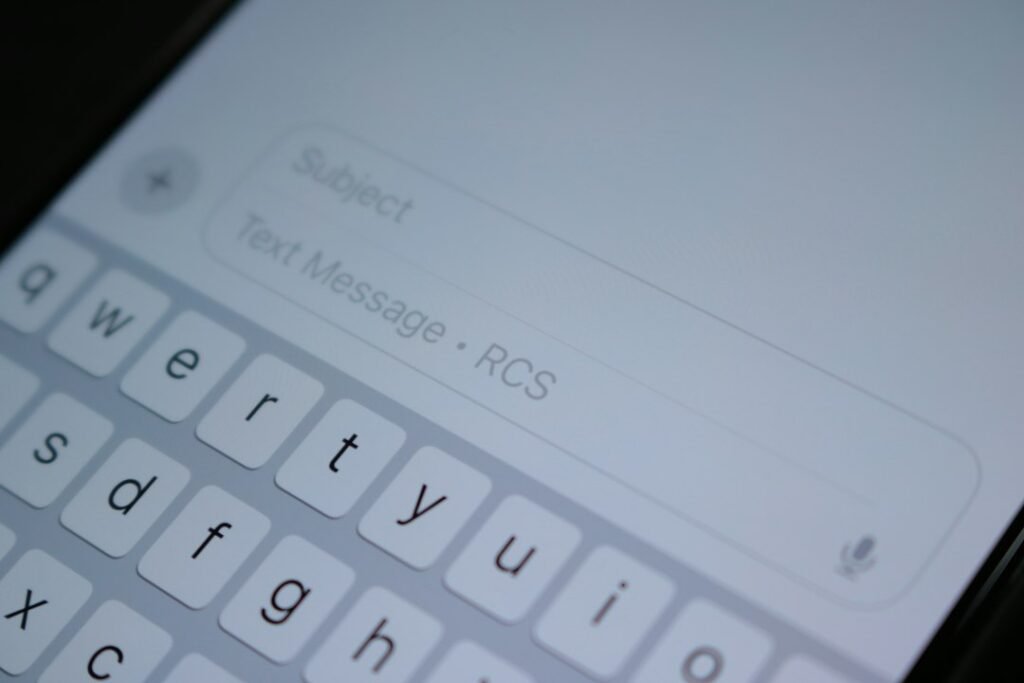
Photo by <a href="https://unsplash.com/@sammysays___?utm_source=wpvibe&utm_medium=referral">Samuel Angor</a> on <a href="https://unsplash.com/?utm_source=wpvibe&utm_medium=referral">Unsplash</a>
Autocorrect can be helpful until it changes a name, technical term or word in another language. On Android, the setting belongs to the keyboard app rather than to Messages, WhatsApp or another app where you type.
This guide explains how to turn off autocorrect on Android when you use Gboard or Samsung Keyboard, how to keep word suggestions without automatic replacements, and what to check if the setting appears to have no effect.
First, identify your Android keyboard
Android phones can use different keyboards, so the correct menu depends on the active one. Google Pixel phones and many devices from Motorola, Nokia and other manufacturers commonly use Gboard. Samsung Galaxy phones generally use Samsung Keyboard unless you changed it.
- Open any app with a text field, such as Messages, Gmail or Notes.
- Tap the text field to display the keyboard.
- Look for a Google “G” or Gboard name, or Samsung Keyboard branding and toolbar styling.
- If you are still unsure, open Settings > System > Keyboard > On-screen keyboard. The wording can vary by manufacturer.
Only change the settings for the keyboard marked as active. Adjusting Gboard will not affect Samsung Keyboard, and the reverse is also true.
How to turn off autocorrect in Gboard
The quickest route starts directly from the keyboard:
- Open an app where you can type and tap a text field.
- On Gboard, tap the Settings gear. If the gear is hidden, tap the four-square or three-dot menu first.
- Select Text correction.
- Under the corrections section, turn off Auto-correction.
- Return to the app and type a short test sentence.
You can also touch and hold the comma key, then slide to the Settings gear on many Gboard layouts. Google’s current Gboard help places suggestion and correction controls under Gboard Settings > Text correction.
Turn off autocorrect but keep word suggestions
You do not have to remove the suggestion row. Leave Show suggestion strip enabled and turn off only Auto-correction. Gboard can then display possible words above the keys without automatically replacing what you typed when you press Space or punctuation.
Other controls perform different jobs:
- Spell check can flag a possible spelling mistake without automatically changing it.
- Auto-capitalization capitalizes the beginning of sentences.
- Double-space period inserts a period when you tap the spacebar twice.
- Smart Compose can offer inline phrase or sentence completions in supported contexts.
- Proofread checks a larger piece of text when you choose to use it.
Disable only the behavior that causes the problem. This preserves useful assistance while giving you control over the final word.
How to turn off autocorrect on a Samsung Galaxy phone
Samsung Keyboard separates predictive suggestions from automatic word replacement. To stop the keyboard from changing a word after you press Space or Enter:
- Open Settings.
- Tap General management.
- Select Samsung Keyboard settings.
- Tap Auto replace.
- Turn Auto replace off for each language where you do not want automatic replacements.
You can also open the keyboard, tap its Settings gear and choose Auto replace. Samsung notes that the exact menus can vary by device model and software version.
Should you turn off Predictive text too?
Usually, no. Auto replace changes the word, while Predictive text displays suggested words. Leave Predictive text on if you want to tap suggestions manually.
Turn off Predictive text only if you also want to remove the suggestion bar or stop Samsung Keyboard from offering learned words. On recent Galaxy software, use Settings > General management > Samsung Keyboard settings > Predictive text.
How to stop one incorrect word without disabling autocorrect
If autocorrect works well most of the time, correcting its vocabulary may be better than disabling it completely.
Remove a learned word from Gboard
- Type enough letters for the unwanted word to appear in the suggestion strip.
- Touch and hold the suggestion.
- Drag it to the trash or removal area when shown.
You can also review Gboard’s dictionary and personalization options in its settings. Menu availability varies by Gboard version and language.
Remove a learned word from Samsung Keyboard
- Type until the unwanted word appears in the predictive-text toolbar.
- Touch and hold the suggestion.
- Choose Remove.
Samsung’s support guidance also provides an option to erase all personalized predictions under Samsung Keyboard settings > Reset to default settings. Use that broader reset only if many learned suggestions are wrong, because it removes useful learned vocabulary as well.
Check settings for every typing language
Autocorrect can behave differently when more than one language is installed. A bilingual keyboard may interpret a correctly spelled word as belonging to the wrong language.
- Confirm that each language you regularly use is enabled.
- Check the active language shown on or near the spacebar.
- On Samsung Keyboard, review Auto replace for each listed language.
- On Gboard, open Languages and remove layouts you no longer use.
- Switch languages deliberately before typing a longer message.
If you regularly type names or specialist terms, keeping the correct language active often reduces unwanted changes without removing all correction features.
Why autocorrect may still change words after you turn it off
You changed the inactive keyboard
Return to the on-screen keyboard list and confirm which keyboard is selected. A phone can have Gboard, Samsung Keyboard and another downloaded keyboard installed at the same time.
A different feature is making the change
Smart Compose, predictive text, proofreading and an app’s own writing assistant are separate from basic autocorrect. Watch when the word changes. If it changes only after you accept an inline suggestion or tap a writing tool, adjust that feature instead.
The setting applies to only one language
Samsung’s Auto replace controls can be language-specific. Review every language enabled in Samsung Keyboard.
The keyboard app needs to restart
Close the app where you were typing and test again. If the old behavior continues, restart the phone. You can also update the keyboard through Google Play or the Galaxy Store.
The keyboard is temporarily malfunctioning
On some phones, clearing the keyboard app’s cache can resolve a settings problem without deleting learned data. Avoid choosing Clear storage unless you are prepared to reset the keyboard. If an Android app is frozen or behaving incorrectly, our guide to force stopping an app on Android explains what that action does before you use it.
Does turning off autocorrect affect every app?
It normally affects the selected keyboard wherever that keyboard is used, including Messages, WhatsApp, Gmail, browsers and note-taking apps. It does not disable:
- Spell checking performed by an individual app
- Grammar or writing assistants built into an app
- Text replacement shortcuts you created separately
- Suggestions from a different keyboard
- Server-side rewriting features you choose to activate
If the issue happens in only one app, check that app’s writing, compose or editor settings before changing the entire keyboard.
Privacy considerations for keyboard suggestions
Keyboard personalization can learn words, names and phrases to improve suggestions. Turning off autocorrect does not necessarily disable personalization or erase learned vocabulary.
If you want to limit learning as well, review the personalization and learned-data controls in your keyboard settings. Read the confirmation message carefully before clearing data because the action may remove custom vocabulary and reset preferences.
Avoid installing unknown keyboard apps. A keyboard processes text you enter, so use a trusted developer, review permissions and keep the app updated.
Frequently asked questions
Will turning off autocorrect remove the suggestion bar?
Not if you disable only Auto-correction in Gboard or Auto replace in Samsung Keyboard. Keep the suggestion-strip or predictive-text option enabled to see suggestions without automatic replacements.
Why is there no Auto-correction option on my Samsung phone?
Samsung usually calls the automatic replacement feature Auto replace. Predictive text controls suggestions, while Auto replace controls whether the suggested word replaces what you typed.
Can I turn off autocorrect for only one app?
Most keyboard autocorrect settings apply across apps. Some apps have their own spelling or writing tools, but Gboard and Samsung Keyboard do not generally offer a simple per-app autocorrect switch.
Does disabling autocorrect delete learned words?
No. Turning the feature off normally leaves learned words and personalization data intact. Use the keyboard’s separate learned-data or reset controls if you want to remove them.
Can I keep spell checking on?
Yes. Spell checking and automatic replacement are separate controls on many Android keyboards. You can keep visual spelling warnings while preventing the keyboard from changing words automatically.
How do I turn autocorrect back on?
Return to Gboard Settings > Text correction and enable Auto-correction, or open Samsung Keyboard settings > Auto replace and enable it for the required language.
Conclusion
To turn off autocorrect on Android, change the setting inside the keyboard you actually use. In Gboard, open Text correction and disable Auto-correction. On a Samsung Galaxy phone, open Samsung Keyboard settings and disable Auto replace for the relevant language.
Keep the suggestion strip or Predictive text enabled if you still want optional word suggestions. Test the change in more than one app, and check language-specific controls if unwanted replacements continue.
Sources
- Google Gboard Help: Get word suggestions and fix mistakes
- Google Gboard Help: Fix problems with Gboard
- Samsung Support: Adjust auto-correct and predictive text
Featured image: Photo by Samuel Angor on Unsplash.