How to Split Screen on Android and Use Two Apps at Once
Use split screen on Android to open two apps at once, resize or swap them, save app pairs, and fix common multitasking problems.
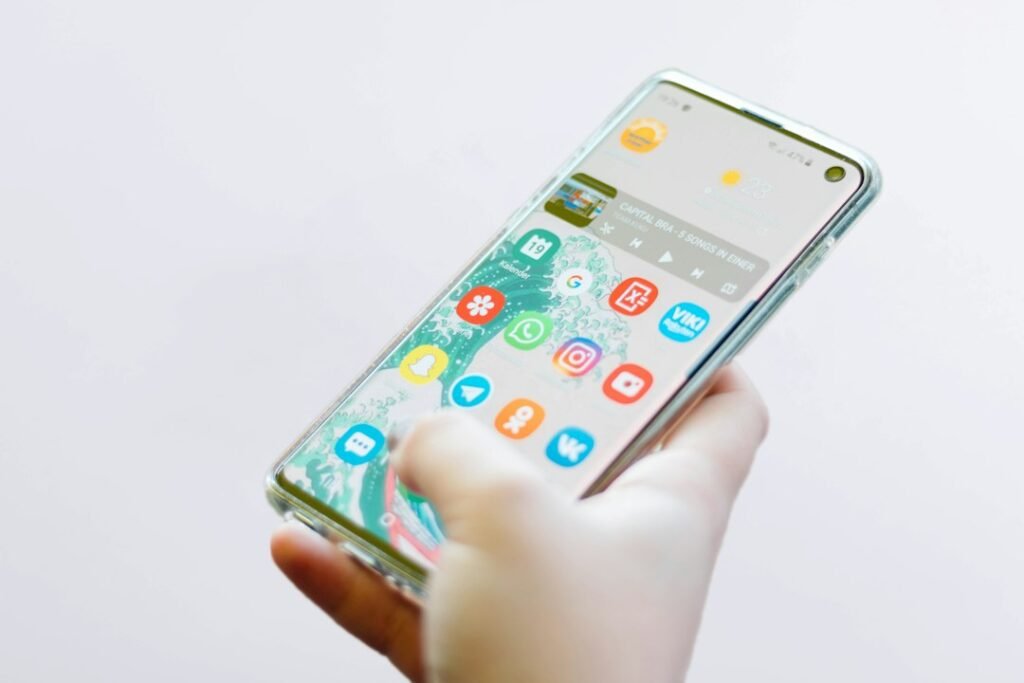
Photo by Christian Wiediger on Unsplash
Android split screen lets you keep two compatible apps visible at the same time. You can follow directions while checking a message, compare information between two pages, or watch a video while taking notes without switching back and forth.
This guide explains how to split screen on Android using Google Pixel, Samsung Galaxy, and Motorola phones, plus how to resize, swap, save, and exit the two-app layout.
What is split-screen mode on Android?
Split-screen mode divides the display between two apps. On a phone held upright, one app usually appears above the other. In landscape orientation or on a tablet, the apps generally sit side by side.
The divider between them controls how much space each app receives. Both apps remain visible, but the app you most recently touched is the active one.
Support varies by app, device maker, Android version, and screen size. Some apps—especially games, camera views, security screens, and apps that require a fixed display—may not allow split screen.
How to split screen on most Android phones
On Google Pixel and many phones with a similar Android interface:
- Open the first app you want to use.
- Open the Recent apps or Overview screen. With gesture navigation, swipe up from the bottom, hold briefly, and release. With three-button navigation, tap the square or Recent apps button.
- Find the first app’s preview and tap its app icon above the preview.
- Select Split screen.
- Choose the second app from Recent apps, the Home screen, or the app list.
The first app stays in one section while the second fills the remaining space. On some versions the command may be labelled Split rather than Split screen.
How to use split screen on a Samsung Galaxy phone
Samsung calls its multitasking feature Multi window. The standard Recent apps method works on many Galaxy phones and tablets:
- Open the first app.
- Tap Recents, or use the gesture that opens the recent-apps screen.
- Tap the app icon above its preview.
- Select Open in split screen view.
- Tap the second app.
You can also open the Edge panel, choose All apps, and drag an app to the top or bottom of a non-folding phone. On supported Galaxy tablets and foldables, dragging an app to the left or right can create a side-by-side layout.
Samsung notes that menus can vary with the model, software version, and mobile carrier. Split screen is also not supported on every app or on every foldable-device screen.
How to split screen on a Motorola phone
Motorola’s standard method is similar:
- Open the first app.
- Swipe up from the bottom, hold, and release to show recent apps.
- Tap the app icon at the top of its preview—not the preview itself.
- Select Split top or the split-screen command shown on your model.
- Select the second app.
Some Motorola phones also offer Swipe to split under Settings > Gestures or in the Moto app. When enabled, a back-and-forth gesture across an open app starts split screen. Availability depends on the model and software version.
How to resize apps in split screen
Drag the divider between the apps toward the top, bottom, left, or right. Give more space to the app you need to read or interact with and less space to the supporting app.
Android limits how far the divider can move. Dragging it all the way to an edge usually closes one part of split screen and leaves the other app full-screen.
If the keyboard covers too much of the lower app, temporarily enlarge that app or rotate the phone. Some layouts reset their proportions when the device rotates.
How to swap the two apps
On some phones, tap the divider and select the swap control. On Pixel Tablet, Google documents double-tapping the middle of the divider to exchange app positions.
If your phone does not show a swap option, exit split screen and start again with the apps in the opposite order. Manufacturer interfaces differ, so a swap button is not guaranteed on every phone.
How to replace one app without closing both
Depending on the Android version, you may be able to tap the Home or Recent apps control for one side and select a replacement app. If that option is not available, drag the divider to close the app you no longer need, then start split screen again with the desired pair.
Save important work before replacing an app. Apps generally preserve their state, but a memory-intensive app may reload when it returns to the screen.
How to exit split screen on Android
Use either of these methods:
- Drag the divider completely to the top or bottom in portrait mode, or to the left or right in landscape mode.
- Use the Home gesture or button. Depending on the phone, the pair may remain available in Recent apps so you can return to it.
To keep one app open, drag the divider toward the app you want to close. The remaining app expands to full screen.
How to save an app pair
App pairs let you reopen the same two apps together. This is useful for combinations such as Maps and Messages, a browser and notes, or a calendar and email.
On supported Samsung Galaxy devices
- Open two apps in split screen.
- Tap the divider between them.
- Select the Add to app pair or star icon.
- Choose an available location, such as the Home screen, taskbar, or Edge panel.
On a supported Pixel Tablet
- Open the two apps in split screen.
- Open Overview by swiping up and holding, or use the Overview button.
- Select Save app pair below the paired apps.
Google says saved pairs can appear on the Home screen and may be moved to the taskbar. App-pair support varies across phones, tablets, and Android releases.
Useful ways to use Android split screen
- Directions and messages: keep navigation visible while reading an address or coordinating an arrival.
- Browser and notes: collect information without repeatedly switching apps.
- Calendar and email: compare your availability while writing a reply.
- Calculator and shopping app: check totals or compare unit prices.
- Video and document: watch instructions while following written steps.
- File manager and messaging app: locate a document before attaching it.
A smaller phone can feel crowded, so use split screen for short tasks rather than keeping every app pair open permanently.
Why split screen may not work
The app does not support it
If the split-screen command is absent for one particular app, that app may not support multi-window mode. Test with two common apps such as Chrome and Settings. If those work, the limitation is probably app-specific.
Your Android interface uses different wording
Look for Split screen, Split, Split top, or Open in split screen view. Phone manufacturers customize Android, so the same feature can have different labels.
You tapped the app preview instead of its icon
In Recent apps, tapping the preview normally opens the app full-screen. Tap the small app icon above the preview to reveal the multitasking menu.
The phone needs an update
Install available Android and system updates, then restart the phone. Menu placement can change after an update, so check the manufacturer’s current support instructions for your model.
A restrictive display or accessibility mode is active
Some simplified interfaces, launcher modes, or accessibility configurations change Recent apps. Temporarily return to the standard launcher and navigation settings to test the feature.
Work or security policies prevent multitasking
A managed work profile or secure app can limit what may appear beside other content. Do not bypass organizational restrictions; contact the administrator if a work app refuses multi-window mode.
Split screen versus picture-in-picture
Split screen gives two apps defined sections of the display. Picture-in-picture places a small floating video or call window over another app.
Use split screen when you need to interact with both apps. Use picture-in-picture when one app mainly needs to remain visible while you work in the other. Picture-in-picture support and permissions depend on the app.
Does split screen affect battery or mobile data?
Split screen itself is a layout feature, but running two active apps can increase processor, network, and display use. Streaming video, navigation, video calls, and automatic refreshing can consume more battery or data regardless of whether they are shown full-screen.
If data usage matters, our guide explains how to set a mobile data warning and limit on Android. You can also close unused apps and reduce screen brightness when multitasking for a long period.
Keep multitasking manageable
Split screen is helpful for a specific two-app task, but too many open apps can make Recent apps harder to navigate. Use Android’s app switcher deliberately and close sensitive content before handing your phone to someone else.
If you need to restrict the phone to one app instead, see how to pin an app on Android before handing over your device.
Frequently asked questions
Can every Android phone use split screen?
No. Most modern Android phones support it, but availability depends on the device, Android version, manufacturer interface, and app.
Why is there no Split screen option for one app?
The app may not support multi-window mode, or a security or device policy may disable it. Test another app before changing phone settings.
Can I use three apps at once?
Standard phone split screen is designed for two apps. Some tablets and foldable devices support additional pop-up windows or desktop-style windowing, but availability varies.
Can I rotate the phone while using split screen?
Usually yes, if rotation is enabled and both apps support the new orientation. The divider position or app sizes may change.
Can I use the keyboard in split screen?
Yes. Tap a text field in either app. The on-screen keyboard may reduce the visible space, so adjust the divider or rotate the device if necessary.
Does split screen keep both apps active?
Both remain visible, but Android and individual apps decide how background activity is handled. A video, game, or secure app may pause when it is not the active side.
Conclusion
To split screen on Android, open Recent apps, tap the first app’s icon, choose the split-screen command, and select the second app. Resize the pair with the divider and drag it to an edge when you want to return to one app. Because phone makers customize Android, check the Pixel, Samsung, or Motorola steps that match your device.
Sources: Google Pixel Help: See two apps at the same time; Samsung Support: Multi window and App pairs; Motorola Help: See two apps at the same time; Google Pixel Tablet Help: Use split screen.
Featured image: Photo by Christian Wiediger on Unsplash.