How to Stop WhatsApp From Saving Photos on iPhone and Android
Stop WhatsApp photos from appearing in iPhone Photos or Android Gallery. Change global, per-chat and auto-download settings without losing chats.
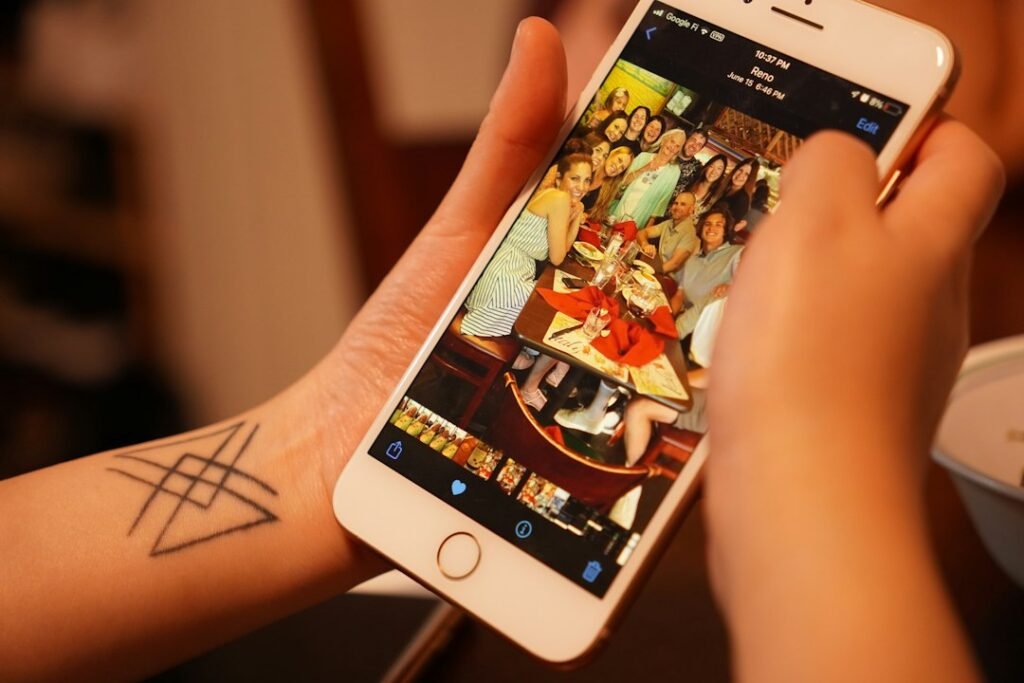
Photo by Brett Wharton on Unsplash
WhatsApp photos can quickly fill a camera roll or clutter an Android gallery, especially when you belong to active groups. You can stop new WhatsApp media from appearing in the phone’s photo library without deleting the conversations or preventing yourself from viewing images inside WhatsApp.
This guide explains how to stop WhatsApp from saving photos on iPhone and Android, how to change the setting for one chat, and how gallery visibility differs from automatic downloading.
Saving photos and downloading media are different settings
Before changing anything, decide which result you want:
- Stop photos appearing in Photos or Gallery: Change Save to Camera Roll on iPhone or Media visibility on Android.
- Stop WhatsApp downloading files automatically: Change Media auto-download under Storage and data.
- Remove photos already stored: Delete them separately from the phone’s photo app or WhatsApp storage manager.
Turning off gallery saving does not necessarily stop WhatsApp from downloading media for use inside the app. Likewise, disabling auto-download does not remove files that were already saved. Treat the two controls separately.
How to stop WhatsApp saving photos on iPhone
To stop incoming media from all chats appearing automatically in the iPhone Photos app:
- Open WhatsApp.
- Tap Settings or your profile picture.
- Tap Chats.
- Turn off Save to Photos or Save to Camera Roll.
The wording can differ by WhatsApp version or region, but the control is located in WhatsApp’s Chats settings. New incoming photos and videos should remain available in their conversations without being added automatically to the iPhone photo library.
Stop saving photos from one WhatsApp chat on iPhone
You can keep the global setting enabled while preventing media from a noisy group or individual conversation from reaching Photos:
- Open the individual or group chat.
- Tap the contact or group name at the top.
- Tap Save to Photos or Save to Camera Roll.
- Select Never.
WhatsApp’s official help describes three per-chat choices:
- Default: Follow the global setting under WhatsApp Settings > Chats.
- Always: Save incoming media from this chat even if the global setting is off.
- Never: Do not save incoming media from this chat to the camera roll.
This per-chat override is useful when most conversations contain photos you want to keep but one group sends large amounts of temporary media.
How to stop WhatsApp photos appearing in Android Gallery
On Android, use the Media visibility setting:
- Open WhatsApp.
- Tap the three-dot More options menu.
- Tap Settings.
- Tap Chats.
- Turn off Media visibility.
This prevents newly downloaded WhatsApp media from appearing in the phone’s Gallery app. The change does not automatically hide or delete photos that were already visible.
Hide media from one WhatsApp chat on Android
- Open the individual or group chat.
- Tap the contact or group name.
- Tap Media visibility.
- Select No.
- Tap OK.
Choose Default if you want the chat to follow the global Media visibility setting. Select Yes only when you want that chat’s downloaded media to appear in Gallery.
How to turn off automatic photo and video downloads
If the goal is to save mobile data or device storage—not merely clean up the gallery—also change WhatsApp’s automatic download settings.
On iPhone
- Open WhatsApp Settings.
- Tap Storage and data.
- Under Media auto-download, tap Photos.
- Select Never to download photos manually, or Wi-Fi to avoid cellular downloads.
- Repeat for videos, audio, and documents if needed.
WhatsApp says that when auto-download is set to Never, you can still download an item manually. For a photo or video on iPhone, press and hold the item and use the Save option when you deliberately want a copy.
On Android
- Open WhatsApp and tap the three-dot menu.
- Go to Settings > Storage and data.
- Tap When using mobile data.
- Clear the check box for photos and any other media you do not want downloaded automatically.
- Tap OK.
- Repeat for When connected on Wi-Fi and When roaming.
Leaving Photos enabled for Wi-Fi but disabled for mobile data can reduce data use without requiring manual downloads at home. Disabling every category gives you the most control but adds an extra tap whenever you want to view a file.
Will this remove photos already saved?
No. These settings primarily control future media. Photos and videos already saved in Apple Photos or Android Gallery remain there until you delete them.
Before deleting existing items, confirm that you still have the original message or another backup if the media matters. A photo may later appear blurry or become unavailable in WhatsApp if the app can no longer locate its local file and the sender’s copy is no longer retrievable.
How to find and remove existing WhatsApp media
Use WhatsApp Manage storage
- Open WhatsApp.
- Go to Settings > Storage and data > Manage storage.
- Select a chat or review large and frequently forwarded items.
- Choose the media you no longer need.
- Delete only after checking the selection.
WhatsApp warns that deleting an item from its storage may not remove another copy already saved on the phone. If storage does not decrease as expected, check Apple Photos, Android Gallery, the Files app, and any cloud-photo backup.
Delete from Photos or Gallery
Open the phone’s photo app, locate the WhatsApp album or search by date, and delete unwanted items. Remember that cloud syncing may also delete the photo from other devices using the same library. Check the Recently Deleted or Trash folder if you remove something accidentally.
Why WhatsApp photos still appear after changing the setting
The photos were saved before the change
Turning off Save to Camera Roll or Media visibility does not clean up existing files. Delete old items manually.
A chat has its own override
On iPhone, a chat set to Always can keep saving media even when the global setting is off. On Android, a per-chat Media visibility choice can override the default. Open the chat’s information screen and switch it back to Default or Never/No as appropriate.
You saved the photo manually
The global setting prevents automatic saving. Manually choosing Save, downloading an item, taking a screenshot, or sharing the image to another app can still create a visible copy.
Your gallery app is showing a cached thumbnail
Close and reopen the gallery app, then restart the phone if necessary. Avoid deleting WhatsApp folders through a file manager until you understand which files are stored there.
A cloud-photo service found the folder
Google Photos, OneDrive, or another backup app may be configured to scan device folders. Review that service’s folder-backup settings separately. Changing WhatsApp cannot remove media already uploaded to a cloud library.
Does turning off photo saving affect chat backups?
Photo-library saving and WhatsApp chat backups are separate. Disabling Save to Photos or Media visibility changes whether media appears in the phone’s photo app. It does not by itself turn off WhatsApp’s chat backup feature.
However, media can still use space inside WhatsApp and may be included in backups according to your backup settings. Review Settings > Chats > Chat backup and WhatsApp’s Manage storage screen if your goal is reducing backup size.
Privacy considerations
Preventing WhatsApp media from appearing in Photos or Gallery reduces casual exposure when someone browses your photo library, but it does not lock the WhatsApp conversation. Anyone who can open your unlocked WhatsApp may still see the media in the chat.
For a broader review, use WhatsApp Privacy Checkup. You can also learn how to silence unknown callers on WhatsApp.
WhatsApp also offers Advanced Chat Privacy for eligible conversations. When enabled, it can limit actions such as automatically saving media outside WhatsApp, exporting the chat, and using some AI features. It is a per-chat privacy feature and should not be confused with the device-wide gallery settings covered above.
Frequently asked questions
Can I stop saving photos but continue saving videos?
Gallery visibility generally controls how downloaded media appears, while Media auto-download lets you configure photos, videos, audio, and documents separately. Use the auto-download settings when you want different behavior by file type.
Can I save one WhatsApp photo after turning automatic saving off?
Yes. Open or press and hold the photo and use the download or Save option available on your device. The setting stops automatic behavior; it does not prevent deliberate saving.
Will senders know that I disabled photo saving?
No notification is sent to the sender when you change your local Save to Photos, Media visibility, or auto-download settings.
Does Media visibility delete photos from Android?
No. Turning it off affects newly downloaded media appearing in Gallery. Existing files remain until you delete them.
Why are photos blurry after I delete them from my phone?
WhatsApp may show a blurry preview when it can no longer find the local file. If the media is no longer available from the conversation or a backup, it may not be recoverable.
Conclusion
To stop WhatsApp from saving photos, turn off Save to Photos/Camera Roll on iPhone or Media visibility on Android. Use the contact or group information screen when you want different behavior for one chat. If you also want to reduce data use and storage, configure Media auto-download under Storage and data. Existing photos must be reviewed and removed separately.
Featured photo by Brett Wharton on Unsplash.