How to Change Photo Permissions on iPhone for Any App
Change photo permissions on iPhone for any app. Learn what Limited, Full, Add Only, and no access mean, plus how to review app privacy.
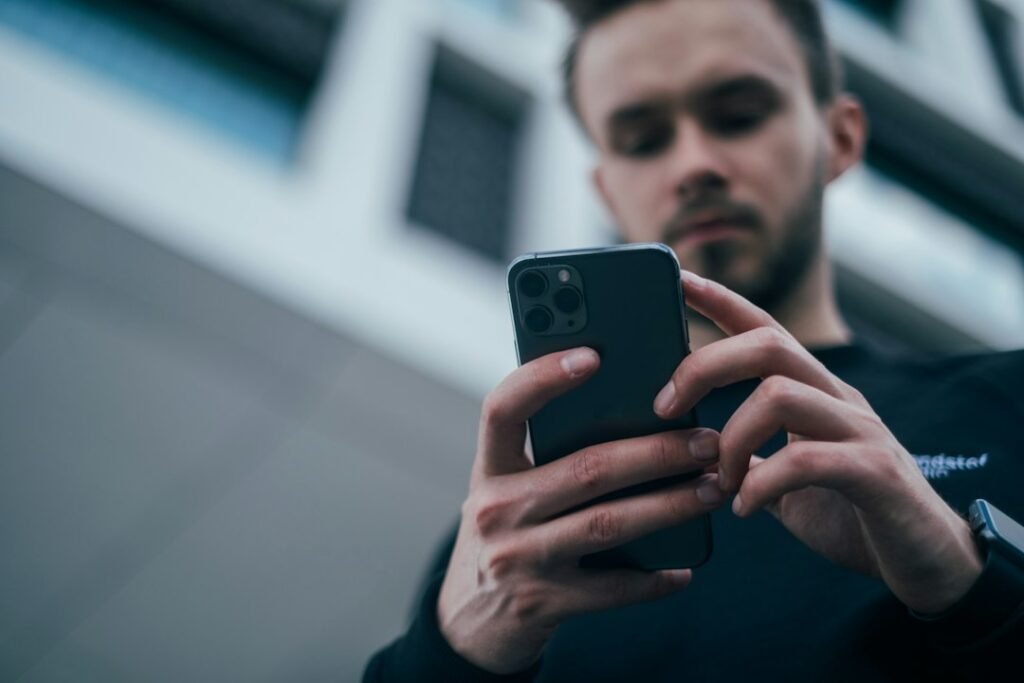
Photo by Jonas Leupe on Unsplash
An app may need one photo for a profile picture without needing your entire library. iPhone lets you review which apps requested photo access and change each app’s permission later. Depending on the app, you can allow selected photos, full library access, permission to add photos only, or no access.
This guide explains how to change photo permissions on iPhone, how each access level works, and what to check when an app does not appear in the Photos privacy list.
How to check which apps can access your iPhone photos
- Open the Settings app.
- Tap Privacy & Security.
- Tap Photos.
- Review the apps shown in the list.
- Tap an app to see or change its current photo permission.
Apple explains that an app appears in a privacy category only after it has requested access to that type of information. Therefore, an installed app that has never asked to use your photo library may not appear under Photos yet.
You can also open Settings, scroll to or search for a specific app, tap its name, and look for a Photos option. The central Privacy & Security list is usually faster when you want to audit several apps at once.
How to change photo permissions for one app
- Go to Settings > Privacy & Security > Photos.
- Select the app you want to review.
- Choose the level of access you want to allow.
- If you choose limited access, select or update the photos and videos available to that app.
- Close Settings. The new permission takes effect without reinstalling the app.
The exact wording can vary with the iOS version and the way the app handles photos. You may see options such as None, Limited Access, Full Access, or Add Photos Only. Some apps use Apple’s system photo picker and do not need broad ongoing library access.
What the iPhone photo access options mean
None
The app cannot browse your photo library through the permission it requested. This is appropriate for an app that no longer needs photos or one you do not trust with library access. You may still be able to share a photo to the app from the Photos app using the iOS share sheet, depending on the app.
Limited Access
The app can access only the photos and videos you select. Apple introduced limited photo-library access so people can share specific items without exposing the whole library. For many social, shopping, editing, and messaging apps, this is the most privacy-conscious option that still allows uploads.
If you later want the app to use more images, return to its Photos permission and update the selected items. The app should behave as though the chosen items are the only photos in the library that it can see through that access.
Full Access
The app can read the complete photo library and, when supported, work with all your photos and videos. Full access may be useful for a trusted backup service, full-library photo editor, printing app, or organizer. It is broader than most apps need for a single upload, so review this choice periodically.
Add Photos Only
This permission allows an app to save new images or videos to your library without reading your existing library. Apple’s developer documentation describes this as an add-only access level. It can suit camera, scanning, or creation apps that need to save results but do not need to browse personal photos.
How to change the photos included in Limited Access
When an app already has limited access, you can revise the selected items instead of granting the whole library.
- Open Settings > Privacy & Security > Photos.
- Tap the app.
- Choose the control for editing selected photos, if shown.
- Select additional photos or deselect items you no longer want available.
- Tap Done to save the selection.
An app may also display a system prompt asking whether you want to keep the current selection or choose more photos. Read the prompt carefully: adding one image to the selection is different from granting full access.
Why an app is missing from the Photos permissions list
The app has not requested access yet
Open the app and use the feature that uploads, edits, or saves a photo. iOS should show a permission request when access is needed. Do not grant a broader option than the feature requires.
The app uses Apple’s photo picker
Some apps let you choose an image through the system picker without receiving continuing access to the library. In this design, the app gets only the items you deliberately select. It may not have the same permission controls as an app using full photo-library access.
The relevant permission is Camera, not Photos
An app that takes a new picture may request camera access. Check Settings > Privacy & Security > Camera. Camera permission lets the app capture an image; Photos permission controls access to the photo library. The app may request both for different features.
Screen Time or device management is restricting changes
On a family, school, or work-managed iPhone, Screen Time restrictions or a management profile may prevent permission changes. Review Settings > Screen Time > Content & Privacy Restrictions, or contact the person or organization managing the device.
How to review whether apps are using sensitive permissions
iPhone includes an App Privacy Report that can show how apps use permissions you granted and display their network activity. To enable or review it:
- Open Settings.
- Tap Privacy & Security.
- Scroll down and tap App Privacy Report.
- Turn it on if it is not already enabled.
- After data has accumulated, review the apps and data or sensor access shown.
Apple says the report starts collecting information only after you enable it, so it may take time before useful activity appears. Turning the report off deletes its collected data from the device.
The report is helpful context, but a permission entry alone does not prove misuse. Consider whether the access matches a feature you used and review the app developer’s privacy policy before deciding to remove the app.
Practical ways to reduce unnecessary photo access
- Prefer Limited Access when an app needs only a few images.
- Use Add Photos Only when an app only needs to save files and offers that option.
- Remove access from apps you no longer use.
- Review permissions after installing photo editors, social apps, shopping apps, scanners, or cloud services.
- Delete apps that request access unrelated to their purpose or do not explain why it is needed.
- Keep iOS and apps updated so current privacy controls and fixes are available.
Photo permission controls limit an app’s access to the library, but they do not erase images you previously uploaded to an online account. To remove those copies, use the service’s account or content controls. Apple also notes that changing device privacy settings does not change data already governed by a third party’s terms and privacy practices.
For additional iPhone privacy, learn how to remove location data from iPhone photos before sharing them. You can also lock or hide sensitive apps with Face ID when supported.
Frequently asked questions
Will changing photo permissions delete my pictures?
No. Changing an app’s permission controls what that app can access. It does not delete photos or videos from your library.
Will the app know that I removed access?
The app can detect that it no longer has the permission needed for a feature and may ask you to enable access again. Removing access does not send the developer a special personal notification, although the app may record normal account or feature activity according to its privacy policy.
Is Limited Access safer than Full Access?
Limited Access exposes fewer items because the app can use only the photos and videos you select. It is usually the better choice when the app does not need to search, back up, or organize the complete library.
Why does an app still let me pick a photo after I choose None?
It may be using Apple’s system photo picker or receiving an item you explicitly share. That lets you choose a specific photo without giving the app ongoing access to browse the library.
Can I reset all privacy permissions at once?
iPhone includes a reset for Location & Privacy settings, but it affects multiple permission categories and causes apps to ask again. For routine privacy maintenance, changing individual apps is more controlled and less disruptive.
Conclusion
To change photo permissions on iPhone, open Settings > Privacy & Security > Photos, choose an app, and select the narrowest access level that still supports the feature you need. Limited Access is useful for sharing selected items, Add Photos Only suits apps that only save results, and Full Access should be reserved for trusted apps that genuinely need the entire library. Review the list occasionally and use App Privacy Report for more context about permission use.
Featured photo by Jonas Leupe on Unsplash.