How to Use Notification History on Android and Find Missed Alerts
Learn how to turn on Android notification history, find recently dismissed alerts, and troubleshoot a missing history option.
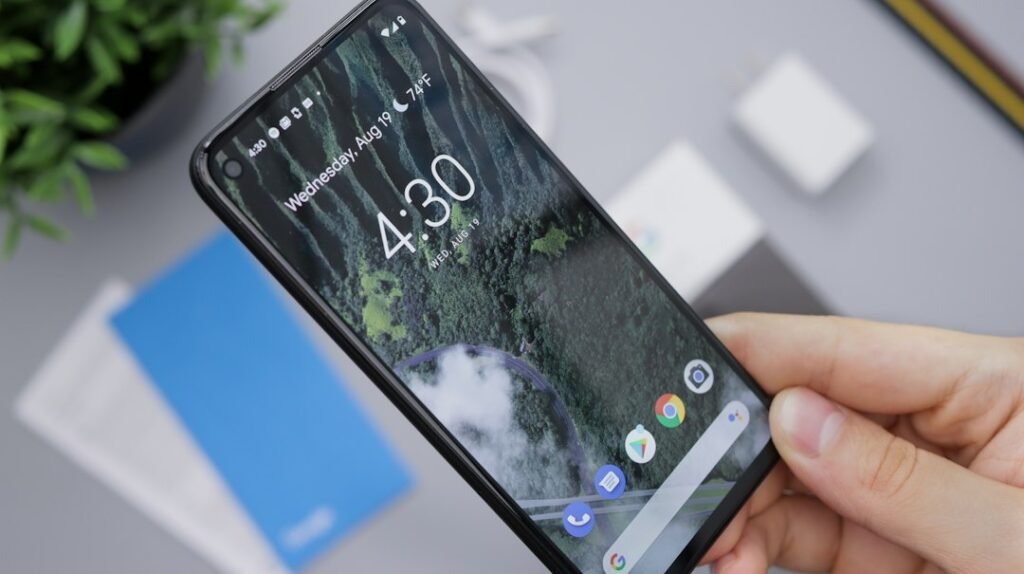
Dismissed an alert before you finished reading it? Android’s notification history can help you find recently cleared messages, reminders, delivery updates, and other alerts without installing another app. The feature is built into many recent Android phones, although the exact menu names can vary by manufacturer.
What Android notification history does
Notification history keeps a record of alerts your phone has received. On supported devices, it can show snoozed notifications, recently dismissed alerts, and notifications from the previous 24 hours. It is especially useful when you swipe away an alert by mistake or want to identify an app that sent a notification earlier in the day.
There are two important limits:
- History is not retroactive. You must turn it on before Android can record dismissed alerts.
- It is a short-term log, not a permanent archive. Google Pixel phones retain dismissed notifications for the last 24 hours.
How to turn on notification history on Android
- Open the Settings app.
- Tap Notifications.
- Tap Notification history.
- Turn on Use notification history.
Once enabled, leave the setting on if you want Android to continue recording dismissed notifications. The wording and path may differ slightly on Samsung, Motorola, OnePlus, and other brands. If you cannot see the option, use the search box in Settings and search for notification history.
How to find a notification you dismissed
Method 1: Open history from Settings
- Open Settings.
- Go to Notifications > Notification history.
- Look under Recently dismissed or the list of notifications from the last 24 hours.
- Tap an entry to open the app that sent it, when the app supports that action.
Method 2: Open history from the notification shade
On Google Pixel phones, swipe down from the top of the screen and scroll to the bottom of the current notifications. Tap History. This shortcut may not appear on every Android brand, so use the Settings method if it is missing.
What you can—and cannot—recover
Notification history is best for locating the text and source of a recently dismissed alert. It does not restore every notification to the notification shade, recover an alert that arrived before history was enabled, or keep an unlimited record.
Tapping a historical notification usually opens its source app. The exact destination depends on how that app handles notification taps. If the underlying item was deleted, expired, or changed—for example, a withdrawn message—the app may no longer show the original content.
Notification history missing? Try these checks
Search Settings first
Android menus vary between manufacturers and software versions. Search Settings for “notification history” rather than relying only on one menu path. Google notes that some Android devices do not provide the feature at all.
Install available system updates
Open Settings > System > Software updates or your manufacturer’s equivalent, then install any available Android update. Restart the phone afterward and search Settings again.
Check whether the app can send notifications
History cannot record an alert that the app never sent. Go to Settings > Notifications > App notifications, choose the app, and confirm that its notifications—or the relevant notification category—are enabled.
Review interruption and battery settings
If alerts arrive late or seem to be missing, check Do Not Disturb, Battery Saver, and Adaptive Battery. Google says these modes can silence, stop, or delay some alerts. Remember that a silenced notification may still appear visually; notification history does not override the app’s notification permissions.
Use the manufacturer’s support instructions
If your phone’s menus are heavily customized, consult its official support site. Avoid installing a third-party “notification saver” unless you trust the developer: such apps may request broad notification access and can potentially read sensitive alert content.
How to manage noisy apps from notification history
History is also a useful way to identify the app behind an unwanted alert. On supported Android devices, touch and hold an item under Recently dismissed, or tap an item in the last-24-hours list, to reach notification controls. You can then turn off all alerts from that app or disable only an unnecessary category if the app provides categories.
It is usually better to disable a promotional category than every notification from an app. That way, important security, delivery, or account alerts can still appear.
Privacy tips before leaving history enabled
Notification history can contain message previews, one-time codes, calendar details, and other personal information. Anyone who can unlock your phone may be able to view the log. Use a strong screen lock, review which apps can display sensitive content, and turn history off if the convenience is not worth the privacy trade-off.
If you sometimes lend your phone to another person, consider using Android’s app pinning feature. Our guide explains how to pin one app before handing over your Android phone.
Frequently asked questions
How far back does Android notification history go?
On Google Pixel phones, notification history lists dismissed notifications from the previous 24 hours. Other manufacturers may implement the feature differently.
Can notification history recover alerts from before I enabled it?
No. Google states that notification history must be turned on first. It begins recording supported notifications only after activation.
Why is one notification absent from history?
The app may not have sent it, its notification permission or category may be disabled, the alert may be older than the retention period, or your device may handle that type of notification differently.
Does turning off notification history stop app notifications?
No. It stops the history feature, not normal app alerts. Manage individual apps under Settings > Notifications > App notifications.
Do all Android phones have notification history?
No. Google explicitly notes that some devices may not include it and that the settings can vary. Check your manufacturer’s current support documentation if the option does not appear.
Conclusion
Android notification history is a simple safety net for alerts dismissed too quickly. Enable it under Settings > Notifications > Notification history, then use the same page—or the History shortcut on supported phones—to review the previous day’s alerts. If the option is missing, search Settings, update the phone, and check the manufacturer’s documentation before considering any third-party app.
Featured image: Photo by Daniel Romero on Unsplash.
Sources: Google Android Help and Google Pixel Phone Help.