Bluetooth Paired but Not Connected in Windows 11? Try These Fixes
Fix a Bluetooth device that is paired but not connected in Windows 11 using safe checks, re-pairing, troubleshooting and driver updates.
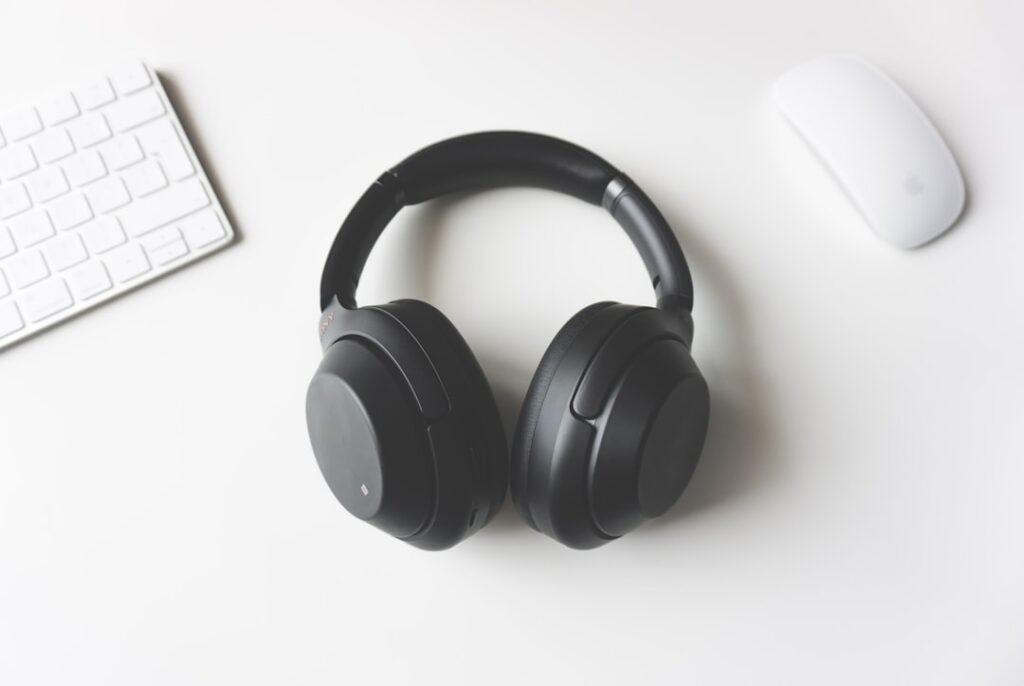
Photo by Tomasz Gawłowski on Unsplash
A Bluetooth accessory can appear as paired in Windows 11 while refusing to connect. The cause may be as simple as the device connecting to another phone, low battery, airplane mode or an old pairing record. Driver problems are possible, but they should not be your first assumption.
Work through these fixes in order, testing the connection after each step.
Quick checklist
- Charge the Bluetooth accessory.
- Disconnect it from nearby phones or tablets.
- Turn airplane mode off.
- Turn Bluetooth off, wait a few seconds, and turn it back on.
- Restart the accessory and computer.
- Remove the device from Windows and pair it again.
1. Confirm the accessory is available
Many headphones, speakers and keyboards automatically reconnect to the last device they used. Temporarily disable Bluetooth on nearby phones or disconnect the accessory there. Put the accessory into pairing mode according to its manufacturer’s instructions.
Keep it close to the computer and make sure it has sufficient battery power. Microsoft also notes that some unshielded USB 3.0 devices can interfere with nearby Bluetooth equipment, so move the accessory or USB device if the connection is unstable.
2. Check Bluetooth and airplane mode
Open Quick Settings from the network, sound or battery area of the taskbar. Confirm that Airplane mode is off and Bluetooth is on. You can also check Settings > Bluetooth & devices.
Turn Bluetooth off, wait several seconds and turn it on again. This refreshes the radio without changing saved pairings.
3. Remove and pair the device again
- Open Settings > Bluetooth & devices > Devices.
- Find the accessory and open its three-dot menu.
- Select Remove device and confirm.
- Restart the accessory and put it into pairing mode.
- In Windows, select Add device > Bluetooth.
- Select the accessory and complete pairing.
Removing a pairing does not normally erase data from the accessory, but specialized devices may have their own setup process.
4. Change Bluetooth device discovery
If the accessory does not appear when adding it, open Settings > Bluetooth & devices > Devices. Under Device settings, change Bluetooth devices discovery from Default to Advanced. Microsoft says Advanced displays more types of devices.
5. Run the Bluetooth troubleshooter
On current Windows 11 versions, Microsoft recommends beginning with the automated Bluetooth troubleshooter in the Get Help app. You can also check Settings > System > Troubleshoot > Other troubleshooters for a Bluetooth option, depending on your Windows build.
6. Check the correct audio output
For headphones or speakers, the Bluetooth connection may be working while Windows uses another output. Select the sound icon on the taskbar, open the output-device list and choose the Bluetooth accessory. Check the volume on both Windows and the device.
7. Update the Bluetooth driver safely
- Search for Device Manager.
- Expand Bluetooth.
- Right-click the computer’s Bluetooth adapter—not merely the headphones.
- Select Update driver > Search automatically for drivers.
- Restart if requested.
If Windows finds nothing, use the support page for your PC manufacturer. Avoid unofficial driver-download websites and general “driver updater” utilities.
8. Reinstall the Bluetooth adapter only if necessary
If Bluetooth appears in Device Manager but remains broken, Microsoft documents uninstalling the adapter and shutting the computer down so Windows can reinstall it. Treat this as an advanced step: make sure you know which entry is the Bluetooth adapter and have access to the manufacturer’s driver if automatic reinstallation fails.
Frequently asked questions
Why does it say paired instead of connected?
Pairing stores the relationship between devices; an active connection occurs only when the accessory is available and the relevant service is in use.
Why do my headphones connect to my phone instead?
They may automatically reconnect to the most recently used device. Disconnect the phone temporarily and place the headphones in pairing mode.
Should I uninstall the Bluetooth driver first?
No. Begin with battery, range, airplane mode, restart and re-pairing. Update or reinstall the adapter only after simpler checks fail.
Can USB devices affect Bluetooth?
Microsoft notes that some unshielded devices connected to USB 3.0 ports may interfere with Bluetooth nearby.
If Windows also feels slow after signing in, review which applications are opening automatically at startup.
Source: Microsoft Support — Fix Bluetooth problems in Windows.